
Function
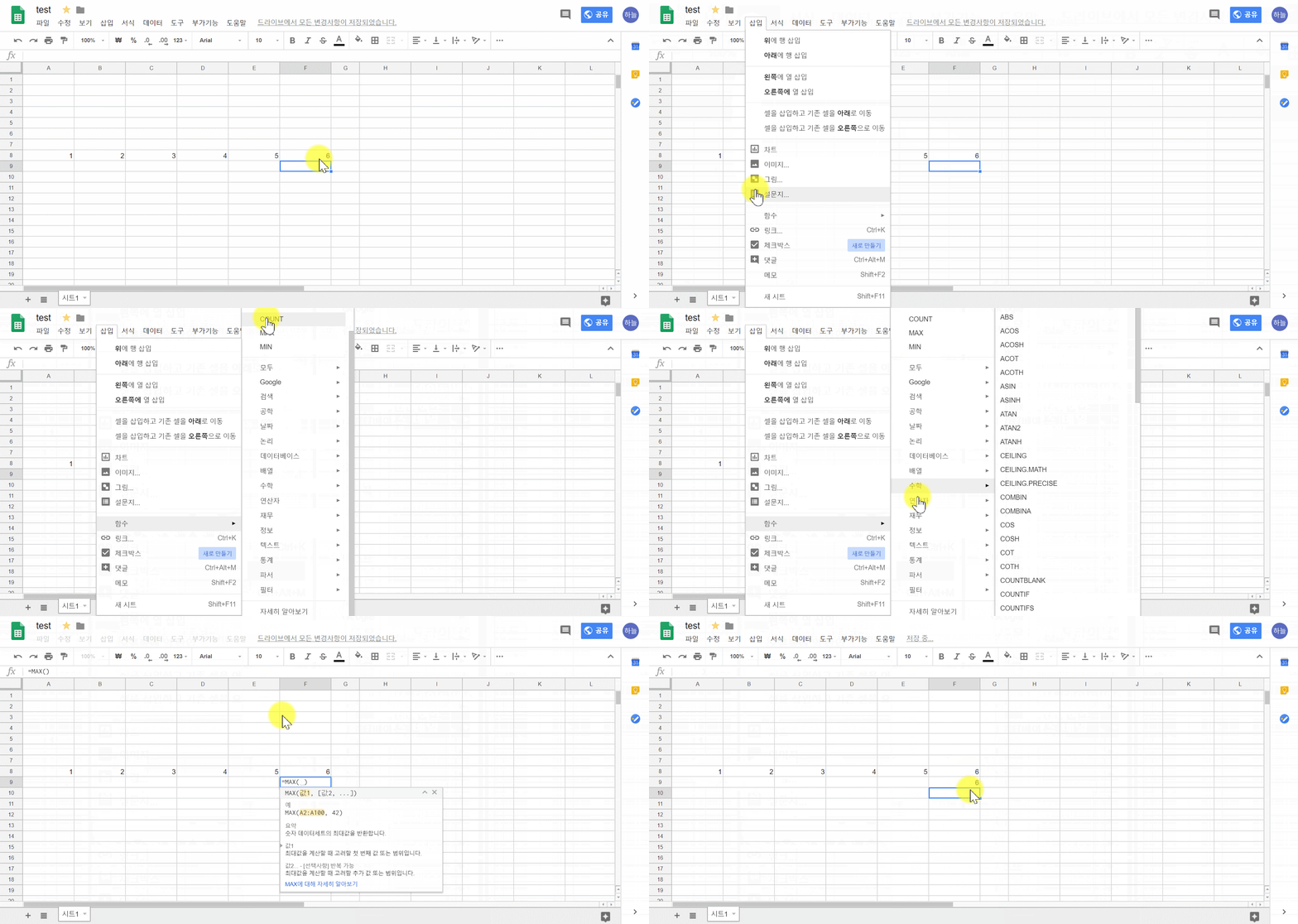
Insert function
- Insert function into selected cell
- Select cell and choose menu “Insert” - ‘function’
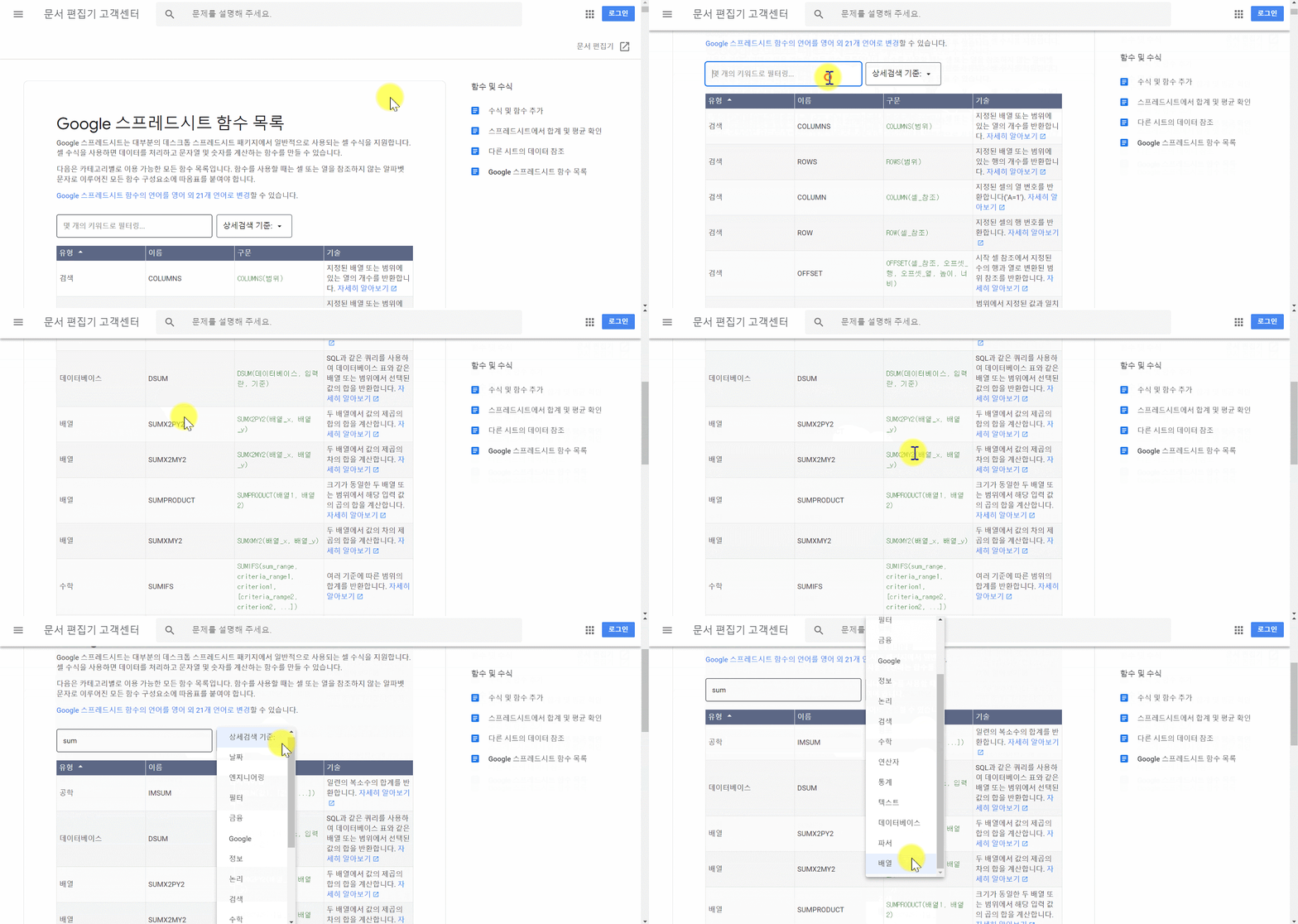
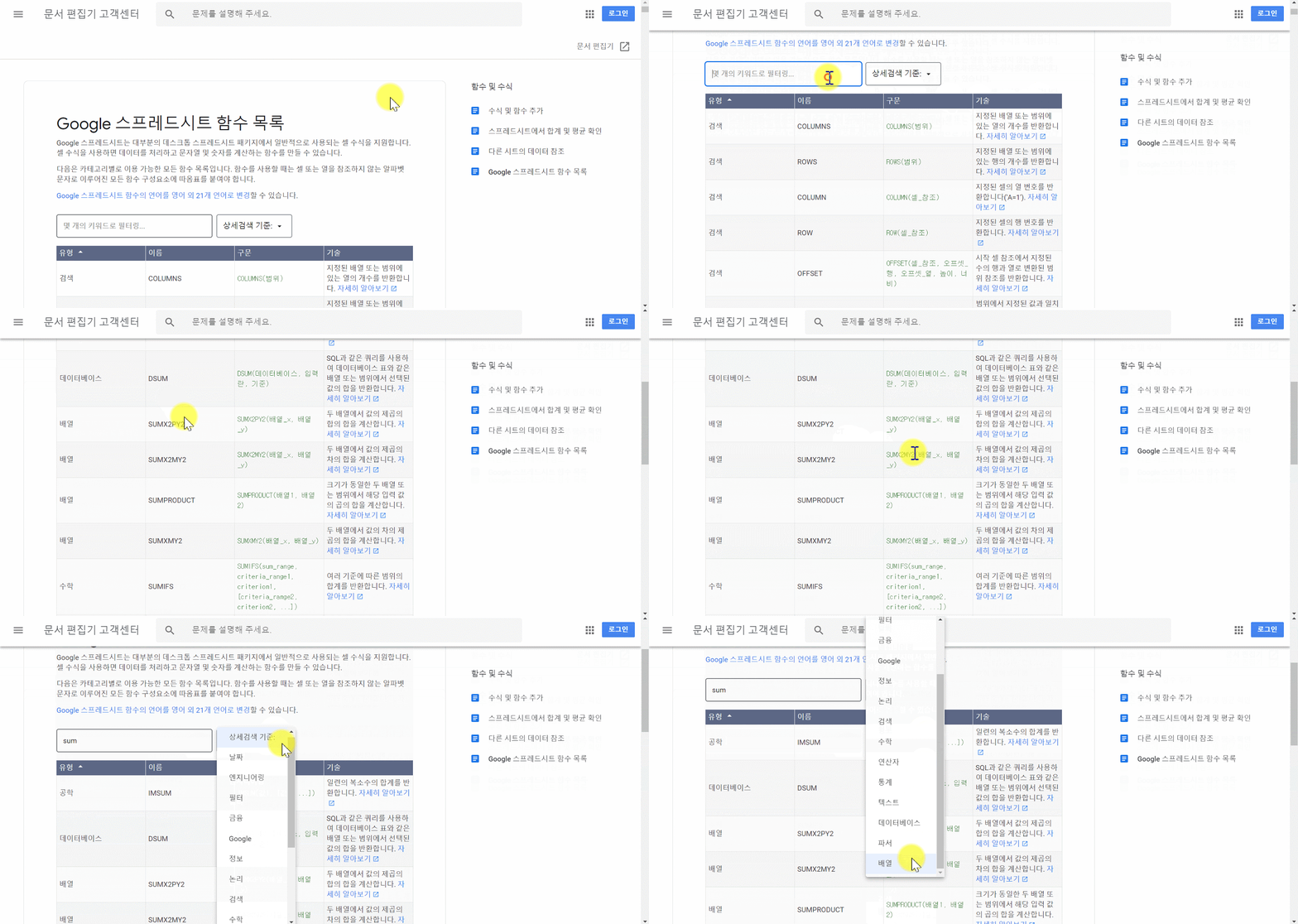
Google Sheets function list
Google Sheets supports cell formulas typically found in most desktop spreadsheet packages. Functions can be used to create formulas that manipulate data and calculate strings and numbers.
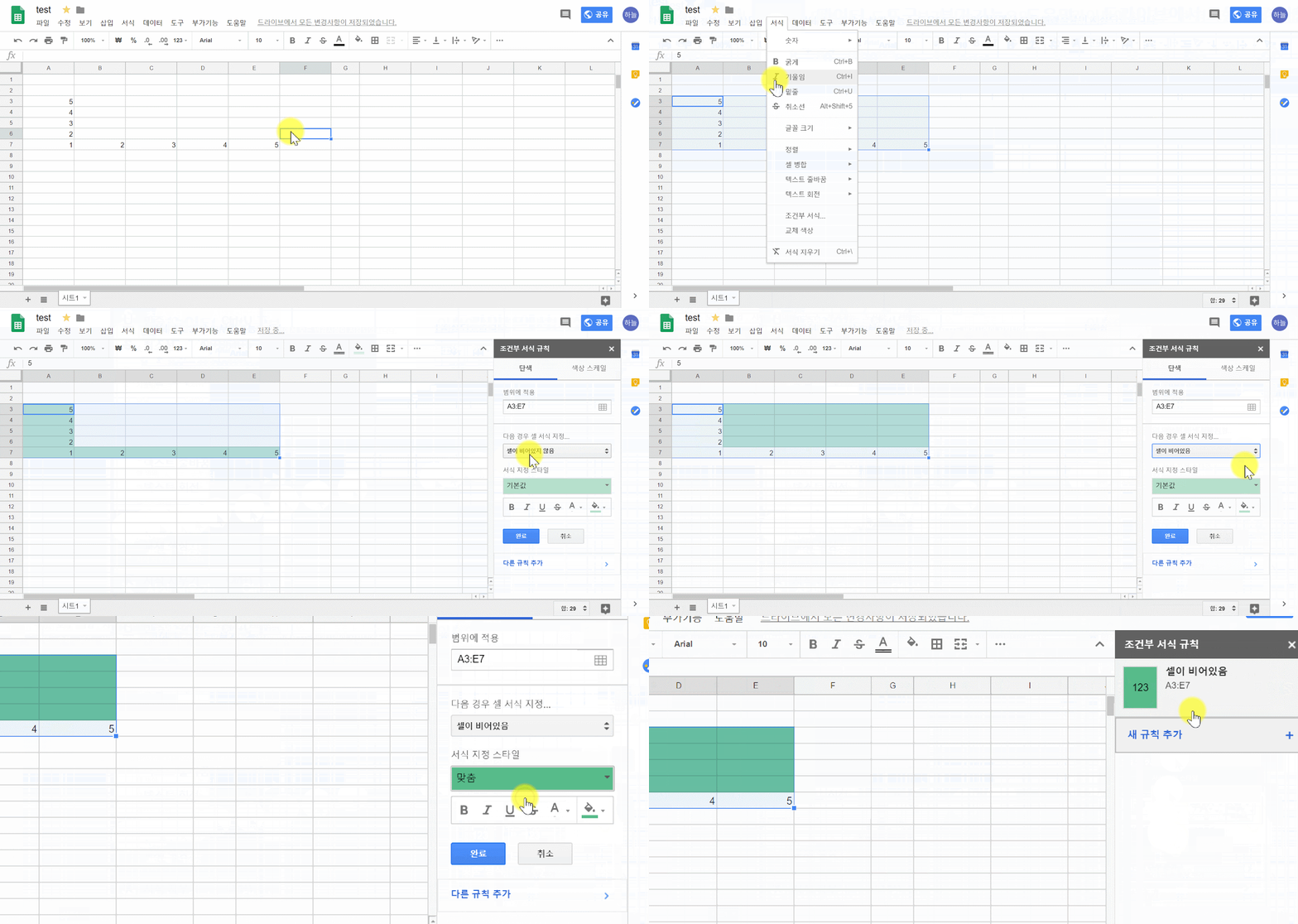
Conditional Formatting
- Apply format regulation in selected cells
- Click Menu ‘Format’
→ ‘Conditional Formatting’ - select the cells that you would like to apply color
→ Click “color”and Apply
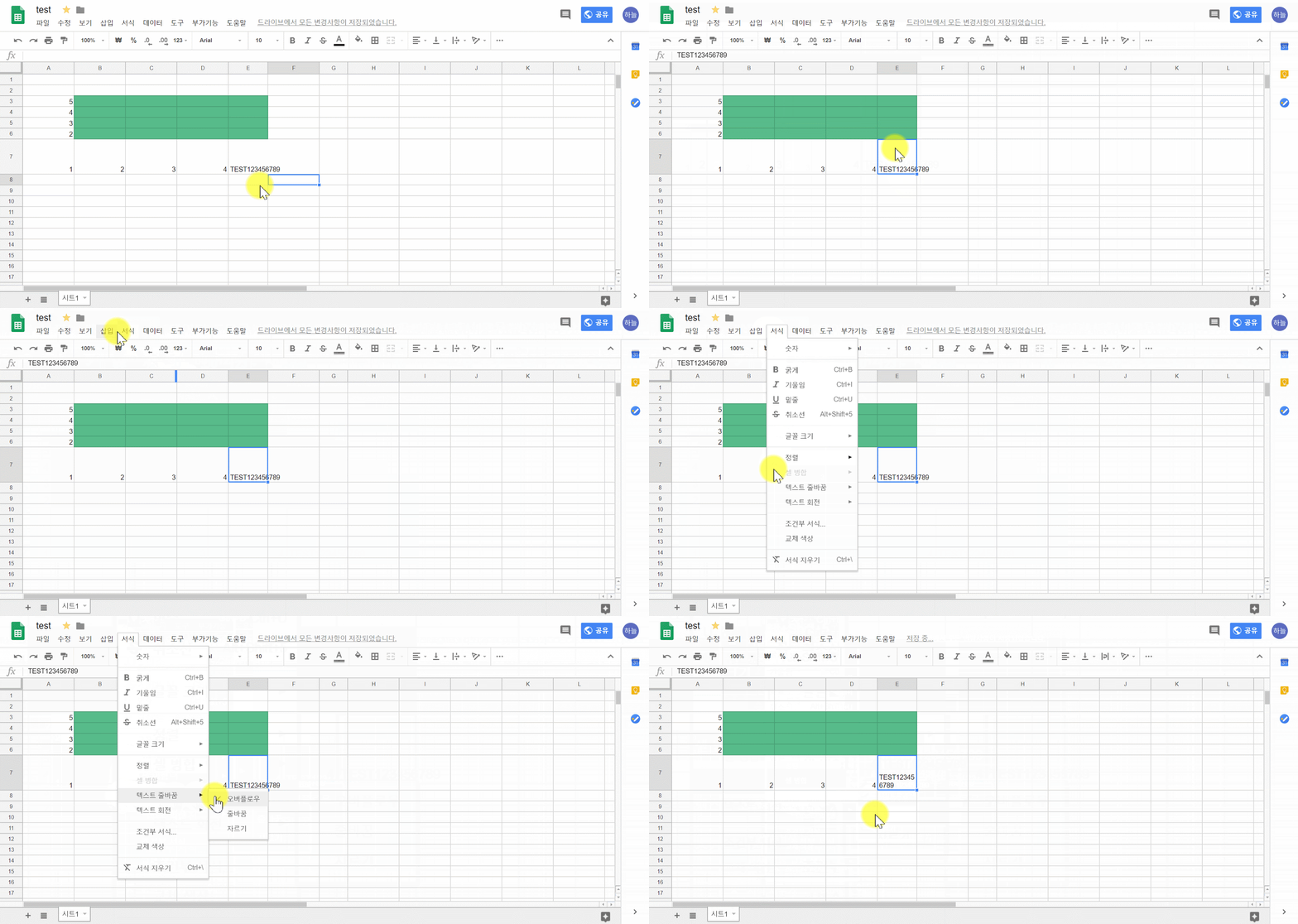
Text wrapping
Setting line break in cell
- Change line break format
- Select cell and choose menu ‘Format’ - ‘line break’ - select format
- Overflow : Set text to go beyond cells
- Wrap : Wrap to fit cell size
- Clip : Clip text to fit cell size
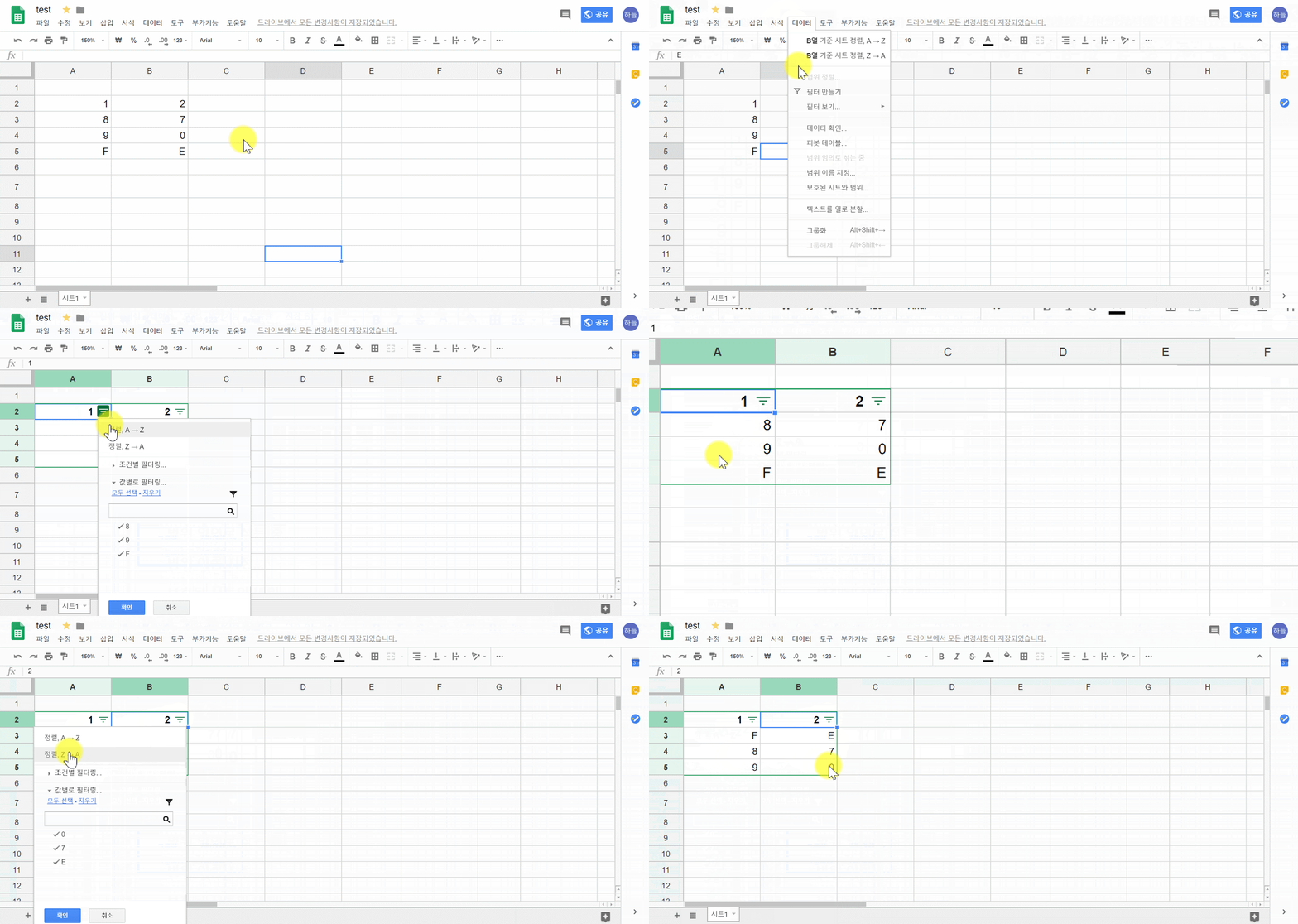
Making filter
- Align the cell in the specific category by using filter
- Click Menu ‘Data’ - ‘Make Filter’
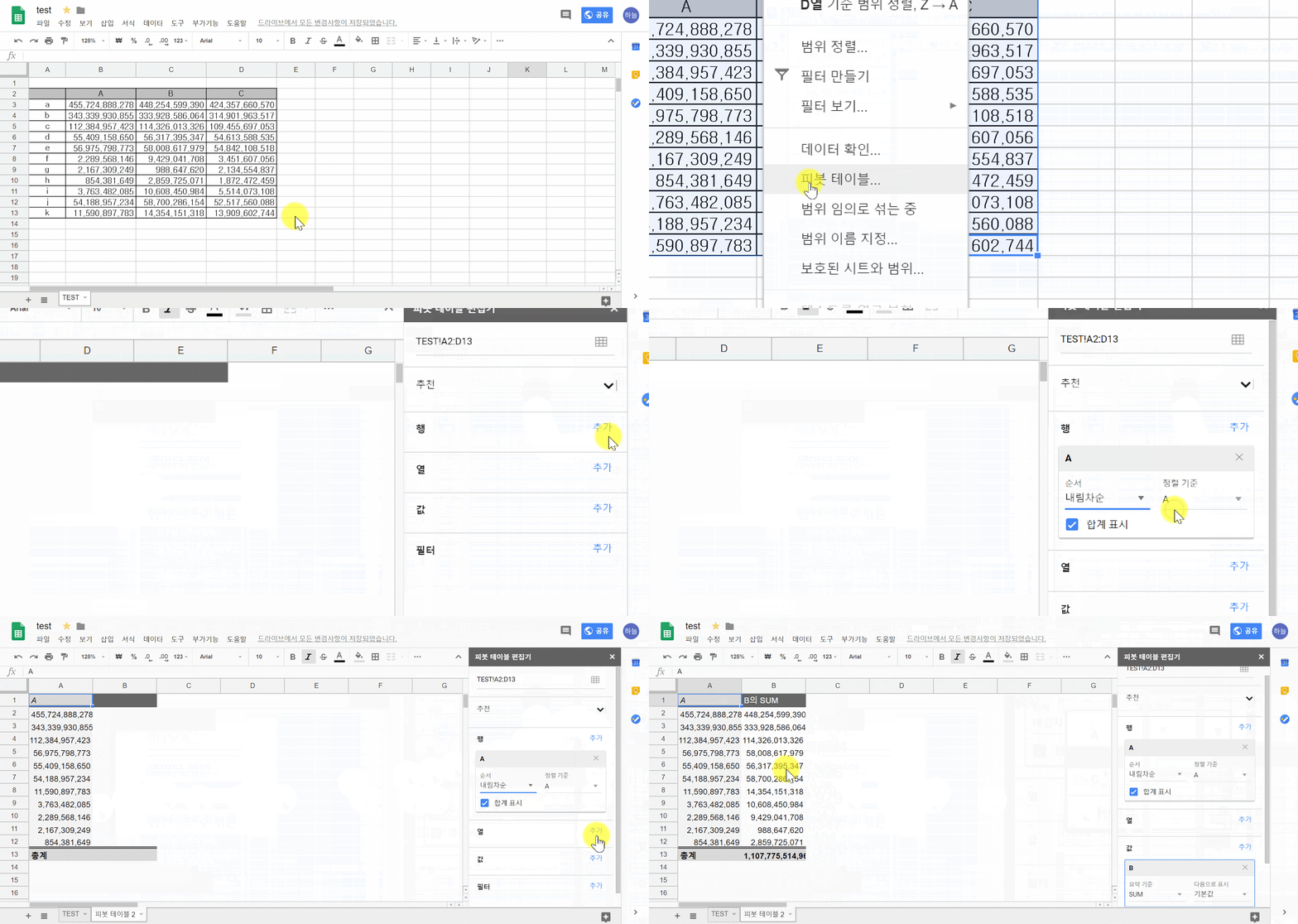
Pivot table
Data set fragmentation & analysis
- analysis the relationship between data points
- Click Menu ‘Data’ - ‘Pivot table’
→ ‘Pivot table Editor’
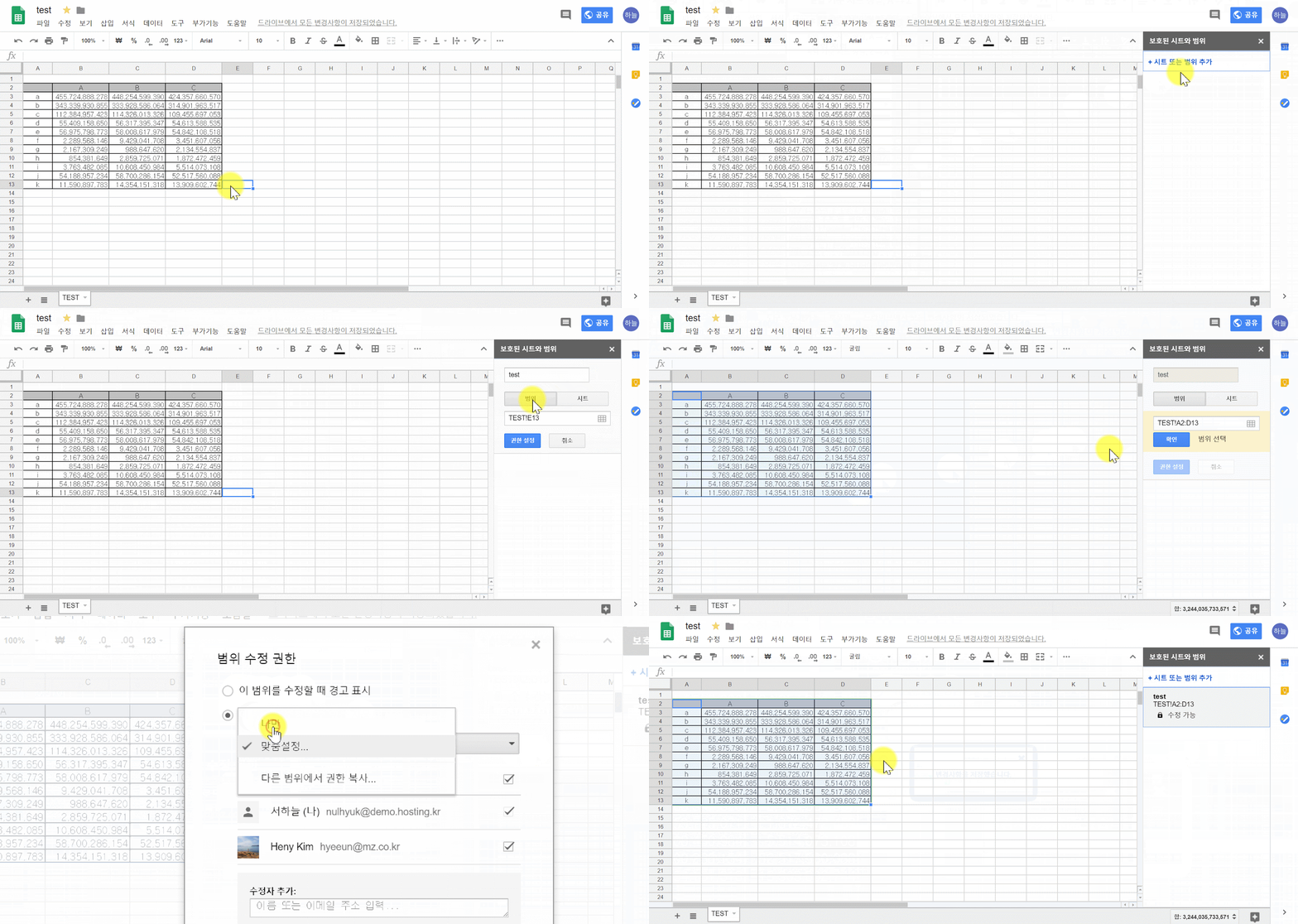
Protected sheet and range
Specific Sheet and protected range & share
- Menu ‘Data’ - ‘Protected Sheet and range’
→ Insert name after click the range of cells
→ Set authority after selected range or sheet
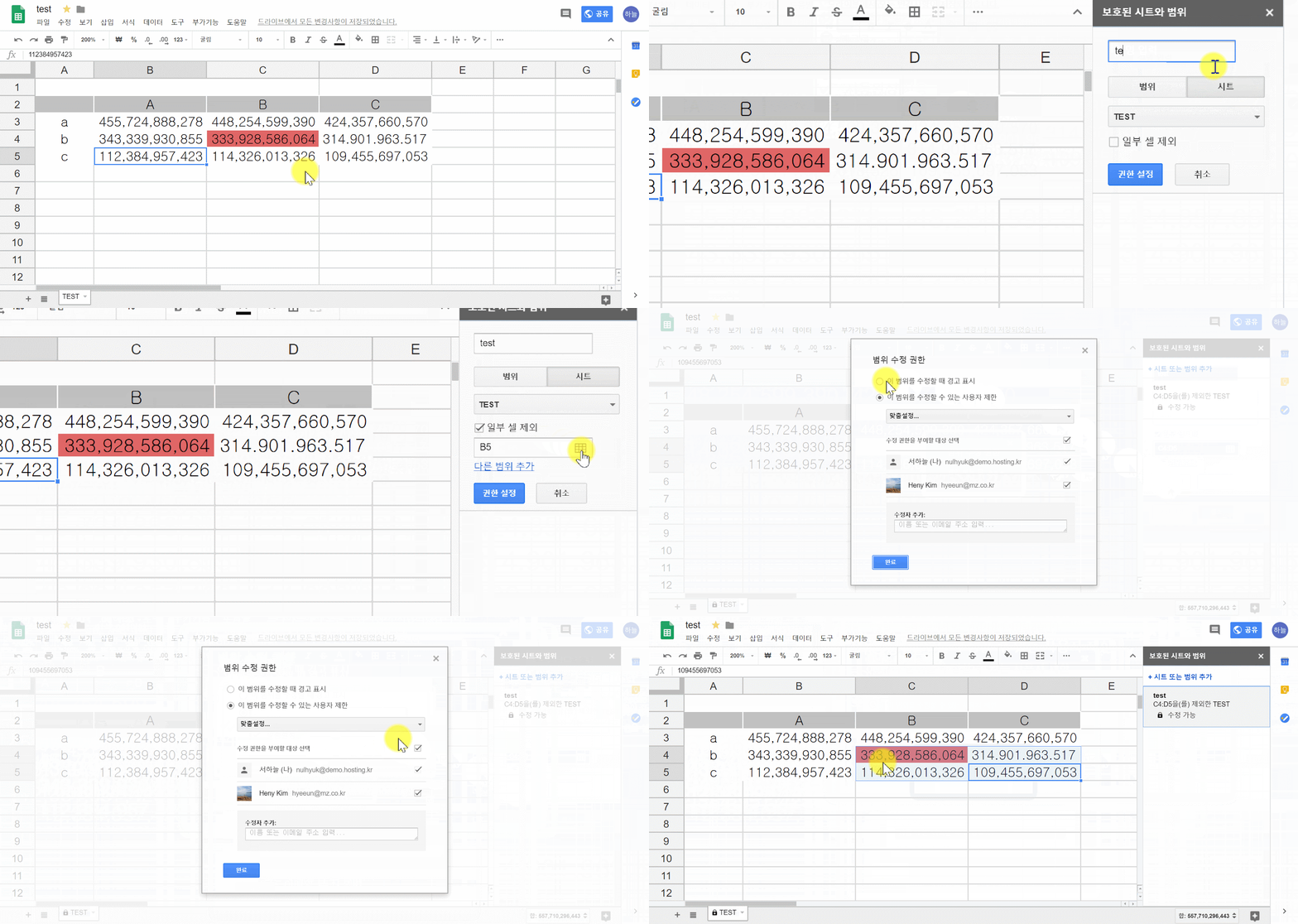
Protect sheet
If you don’t want people to change the content in a spreadsheet, you can protect it.
① Open a spreadsheet in Google Sheets
② Click Data > Protected sheets and ranges. A box will open on the right.
③ Click Add a sheet or range or click an existing protection to edit it.
④ To protect a range, click Range. To protect a sheet, click Sheet
⑤ Click Set permissions or Change permissions.
Choose how you want to limit editing
⑥ Click Save or Done.
Split data into columns
You can split clearly defined data, like text separated by commas, into several columns with Google Sheets.
①On your computer, open a spreadsheet in Google Sheets
②At the top, click Data > Split text to columns.
Macros
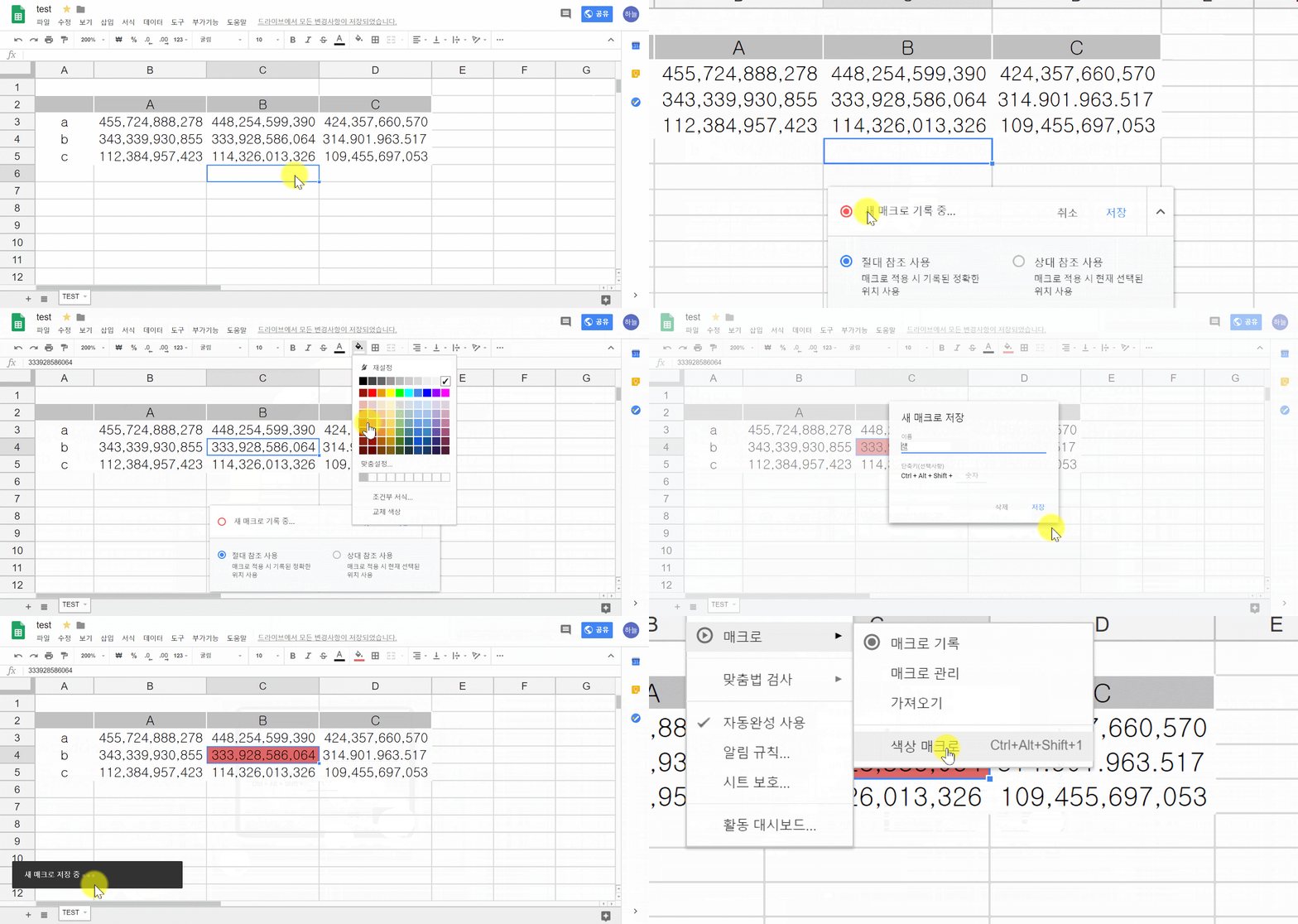
Recording new macro
- for recording specific repeated work
- Menu ‘Tool’ - ‘Macro’ - Click ‘Record Macro’
→ Check the new macro during recording
→ Automation (ex. Apply for guideline)
→ Menu ‘tool’ - ‘macro’ - check save macro
- Use absolute references : When applying macro use exact location as recorded
- Use relative references : When applying macro use active selection
Attach spreadsheet on email
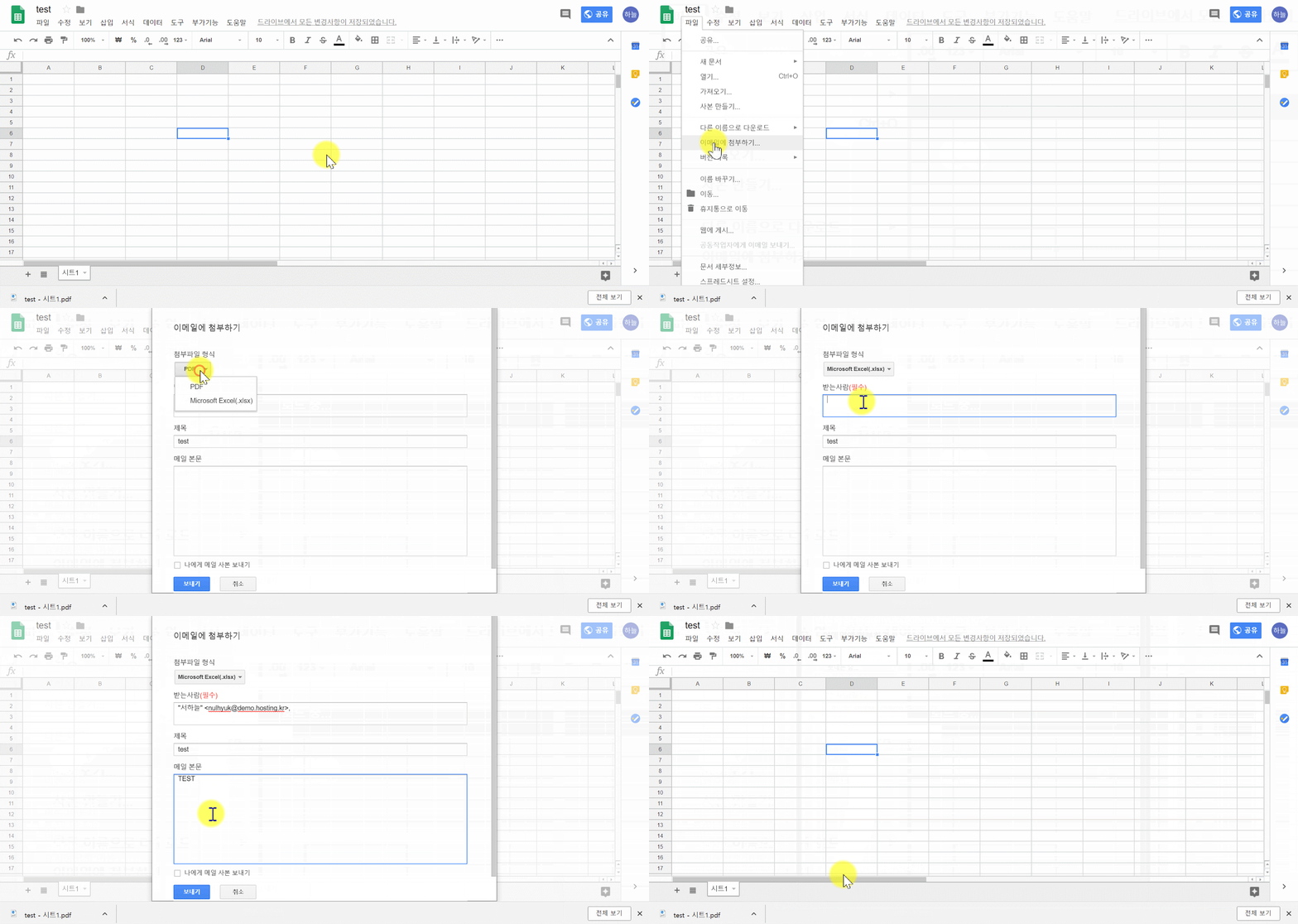
- Menu ‘File’ → ‘Attach on Email’
→ Attached file extension, Receiver , title, Body of email
→ Click ‘Send’, You can send an email attached spreadsheet
Comments
0 comments
Please sign in to leave a comment.