
Open Doc, Slides, Sheets
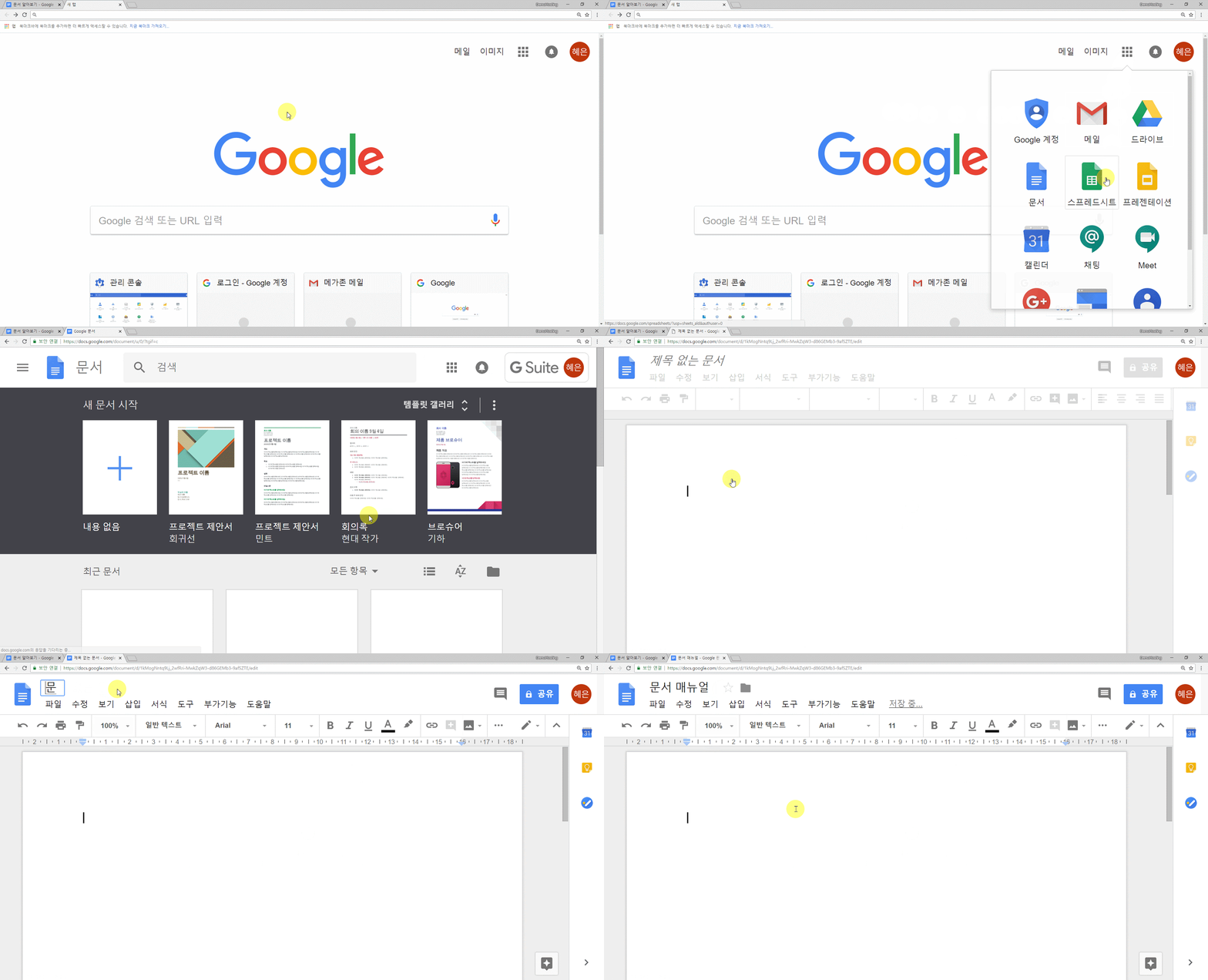
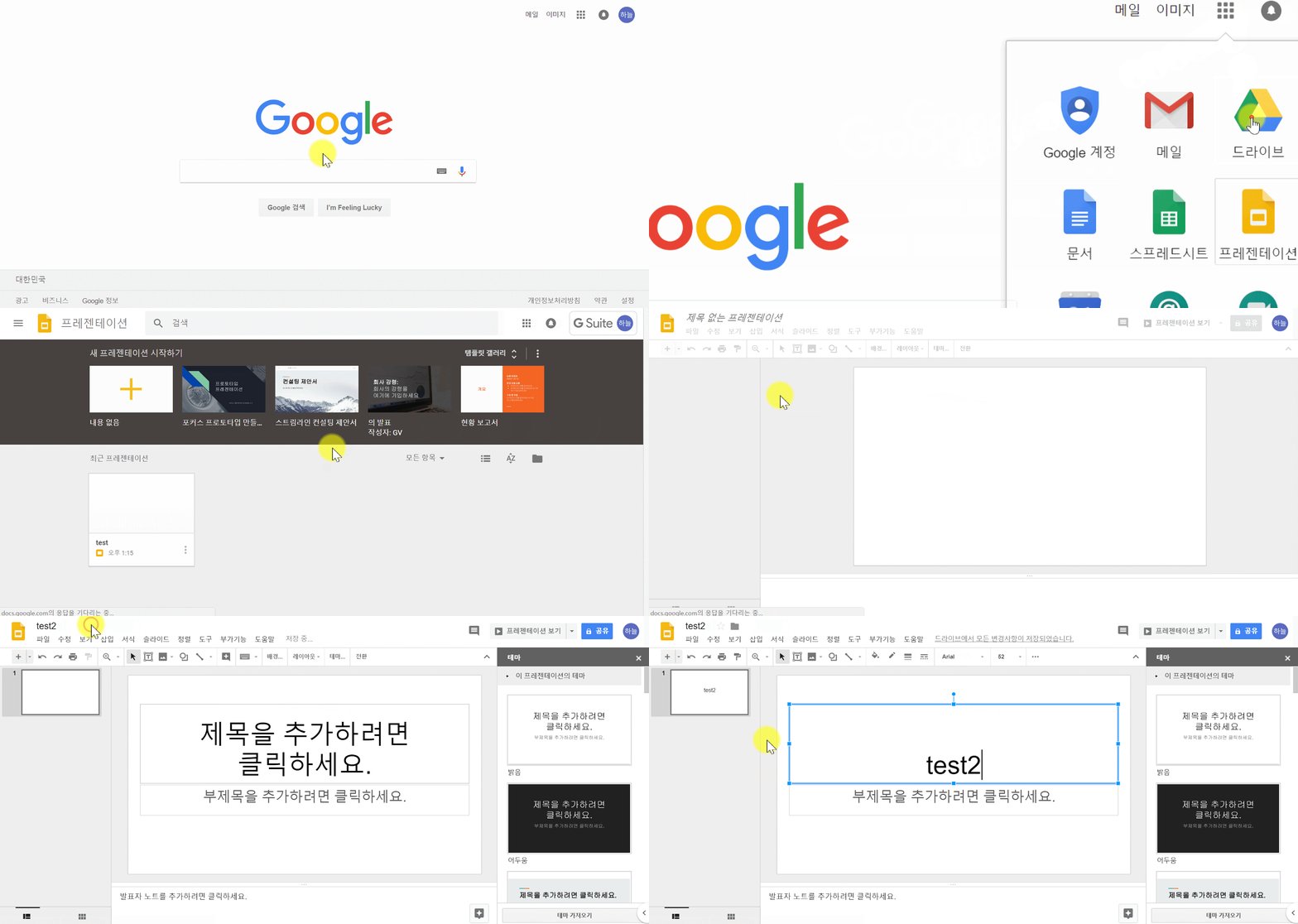
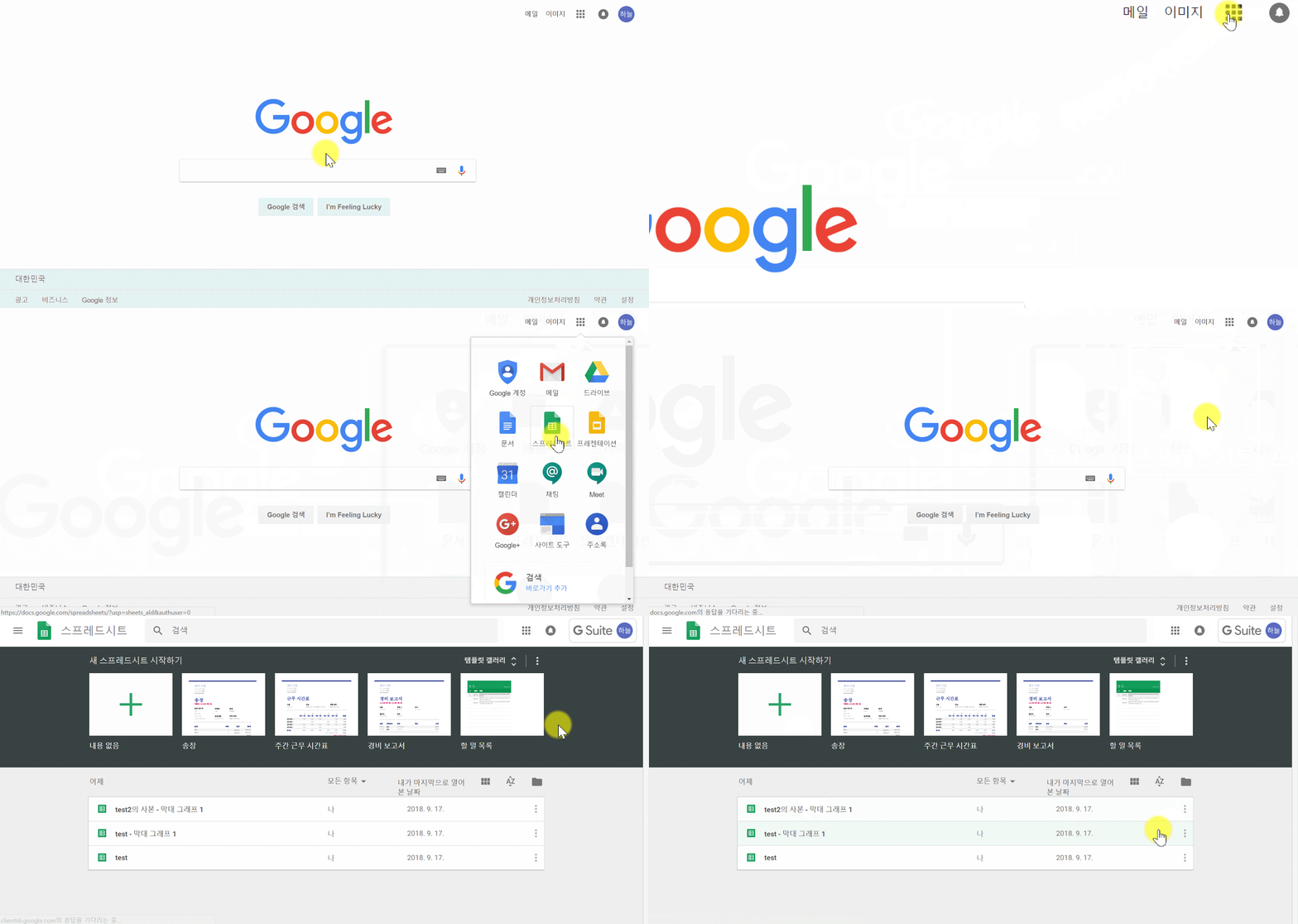
- Click Right top (Google Apps) and click ‘Doc, Slides, Sheets’
- ‘Start new Doc, Slides, Sheets’, Click the form of ‘Blank’ open new Doc, Slides, Sheets
- Auto-save
Doc
Slides
Sheets
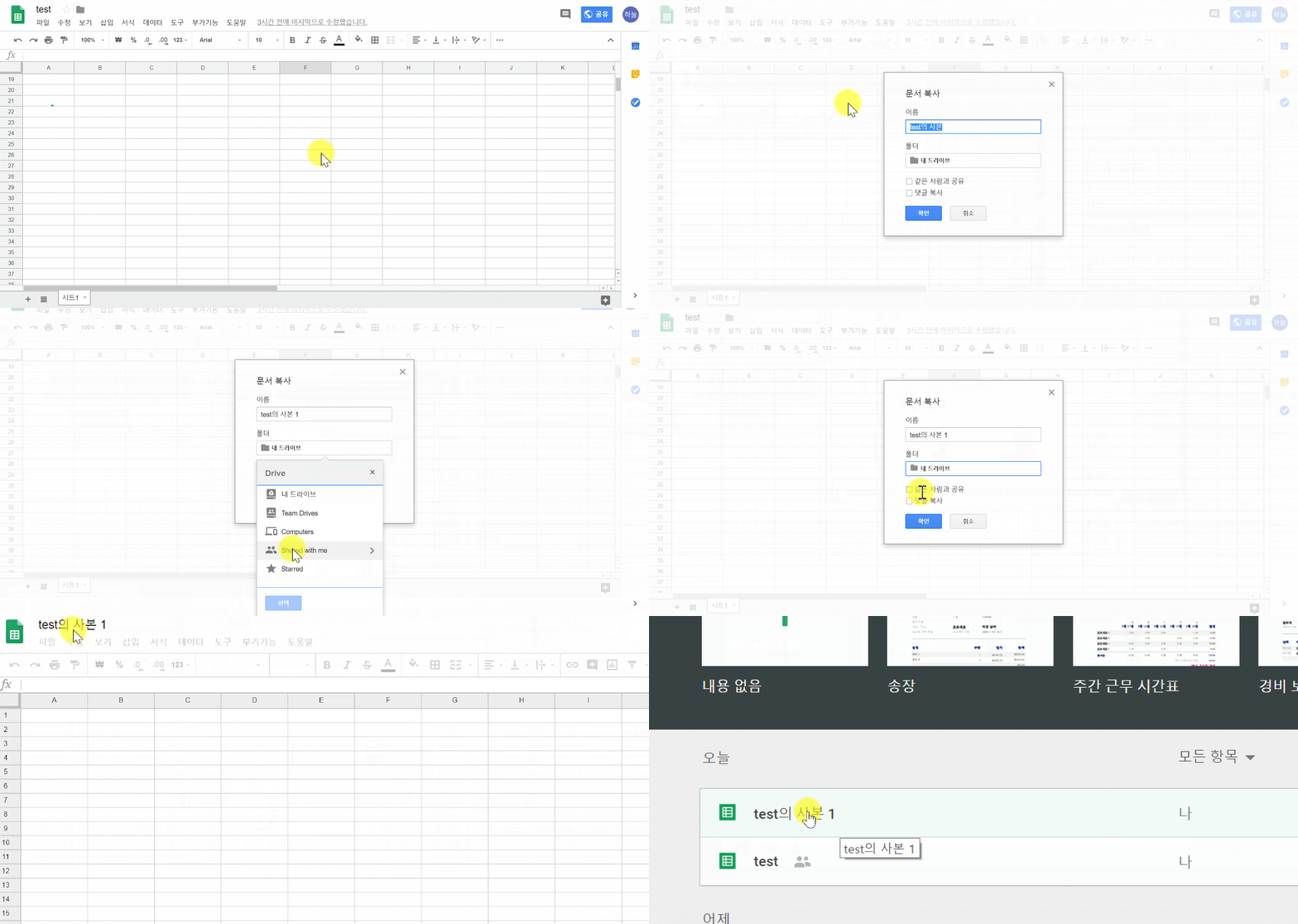
Make a copy of a file
① On your computer, open a Google Docs, Sheets, Slides, or Forms home screen.
② Open the file you want to make a copy of.
③ In the menu, click File > Make a copy
④ Type a name and choose where to save it.
**If you want to copy comments from a document, spreadsheet, or presentation, click Copy comments and suggestions. You can choose to include resolved comments and suggestions in your new copy.
⑤Click Ok.
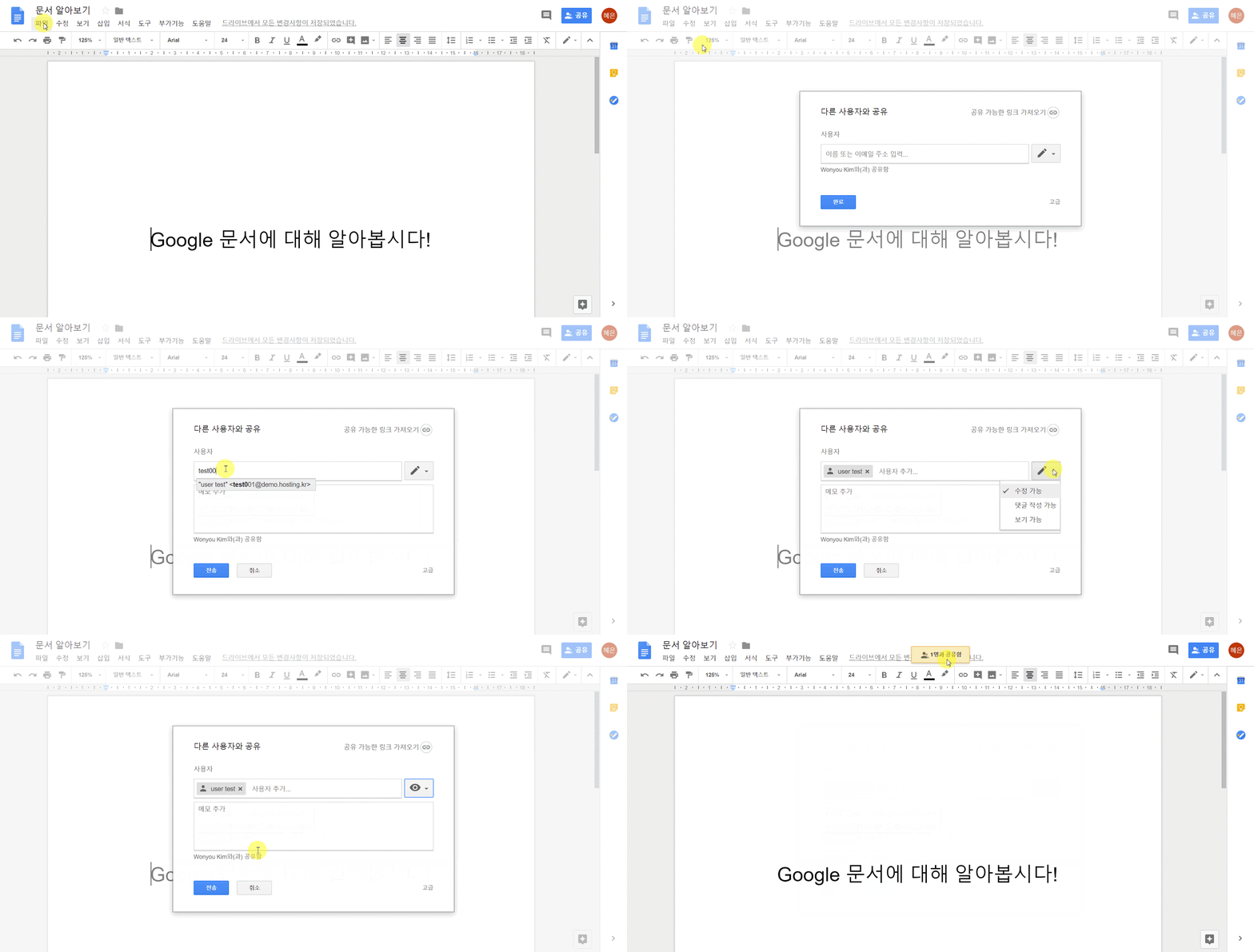
Share files
- On a computer, go to Google Drive, Docs, Sheets, or Slides.
- Click the file you want to share.
Click Share or Share icon.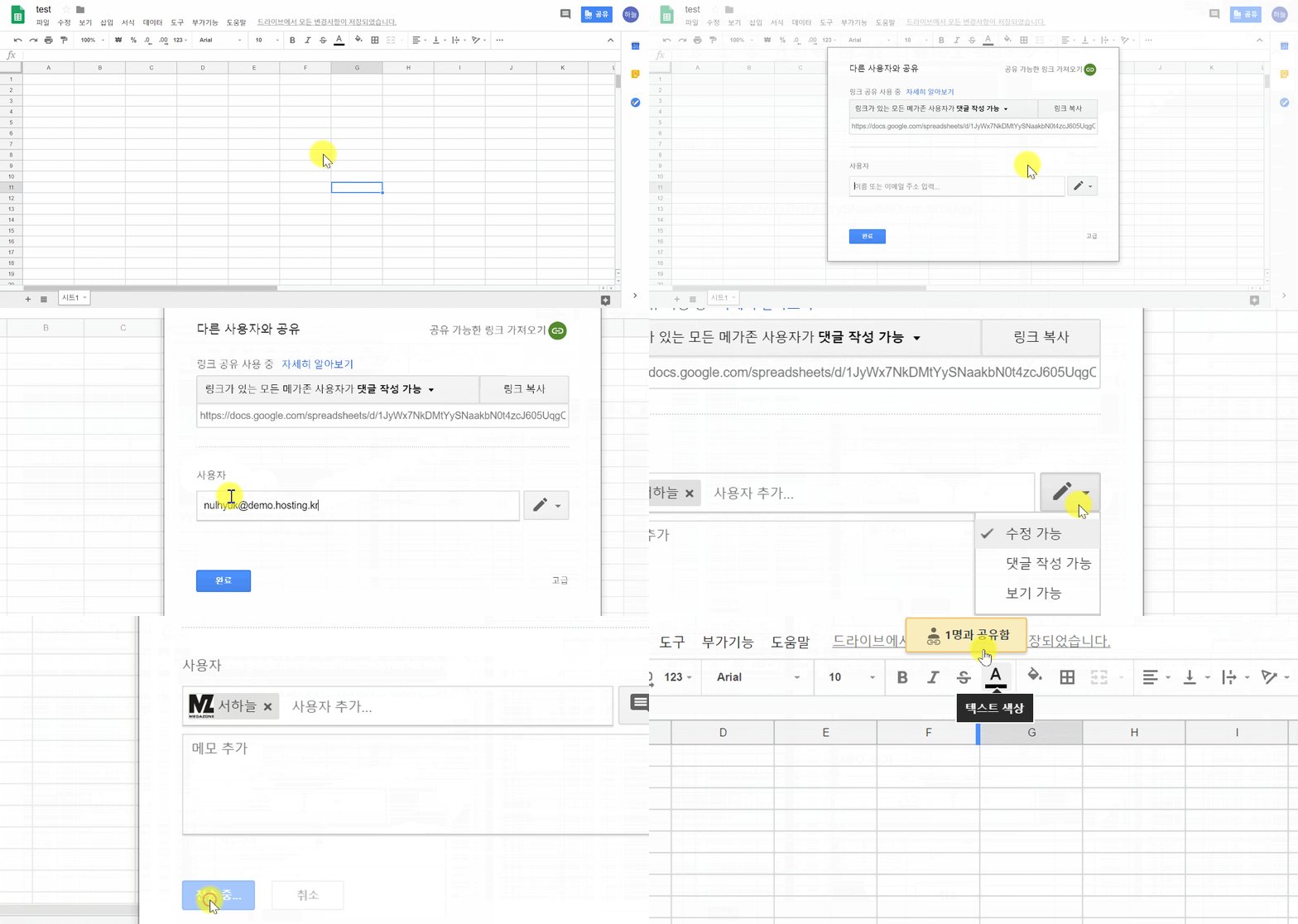
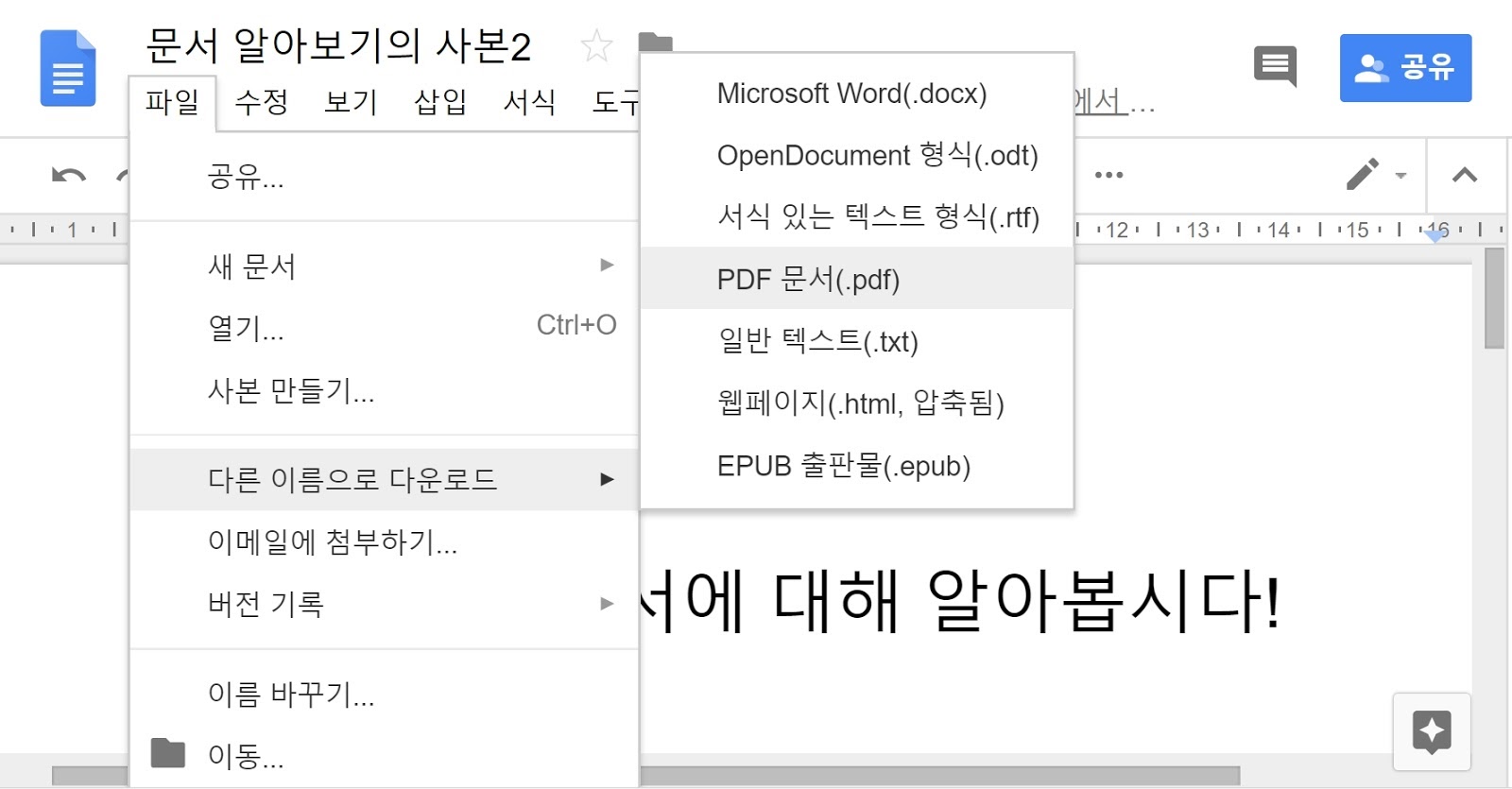
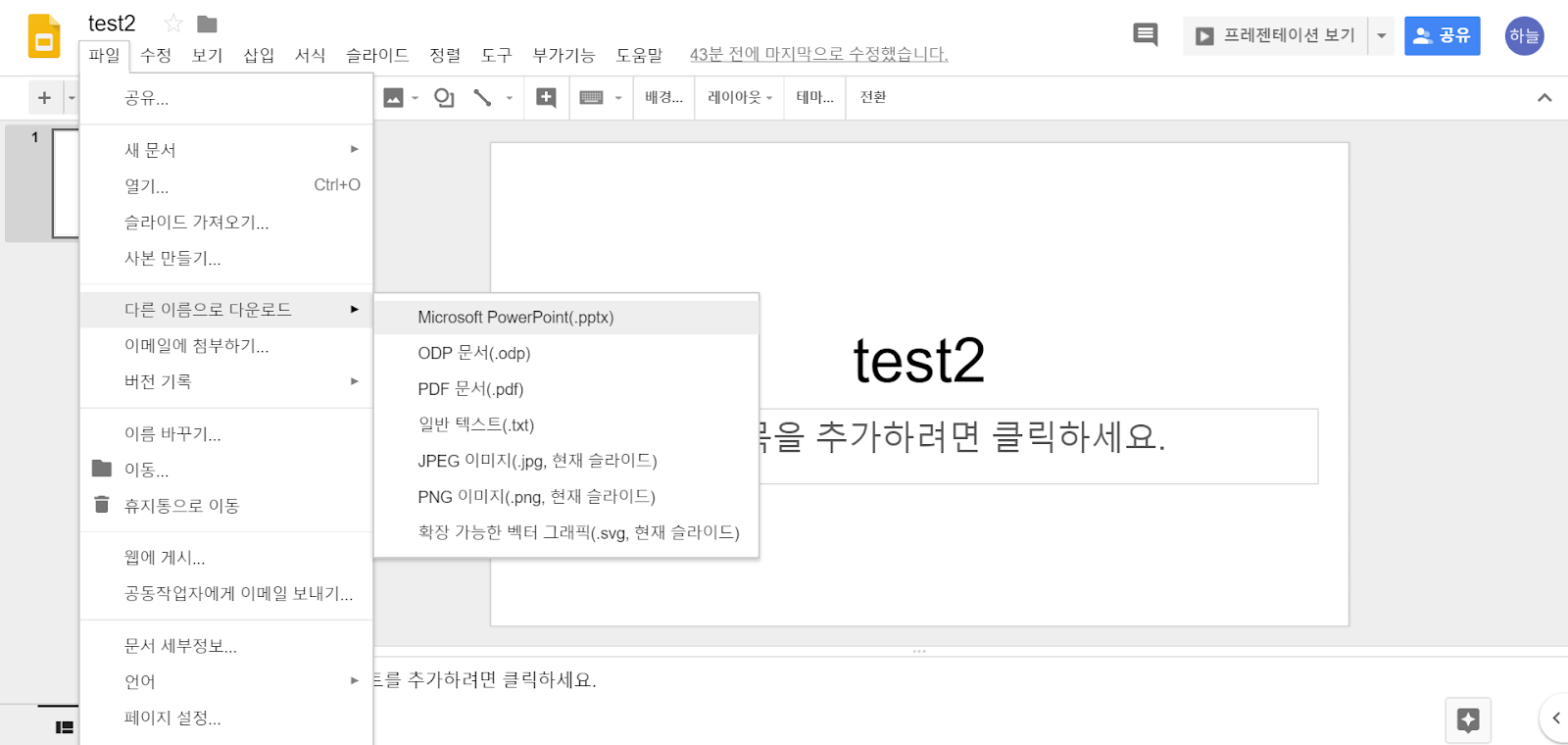
Download as other named file
Menu ‘File’ - ‘Download’ → Check saved file in downloaded location
Doc
Sheets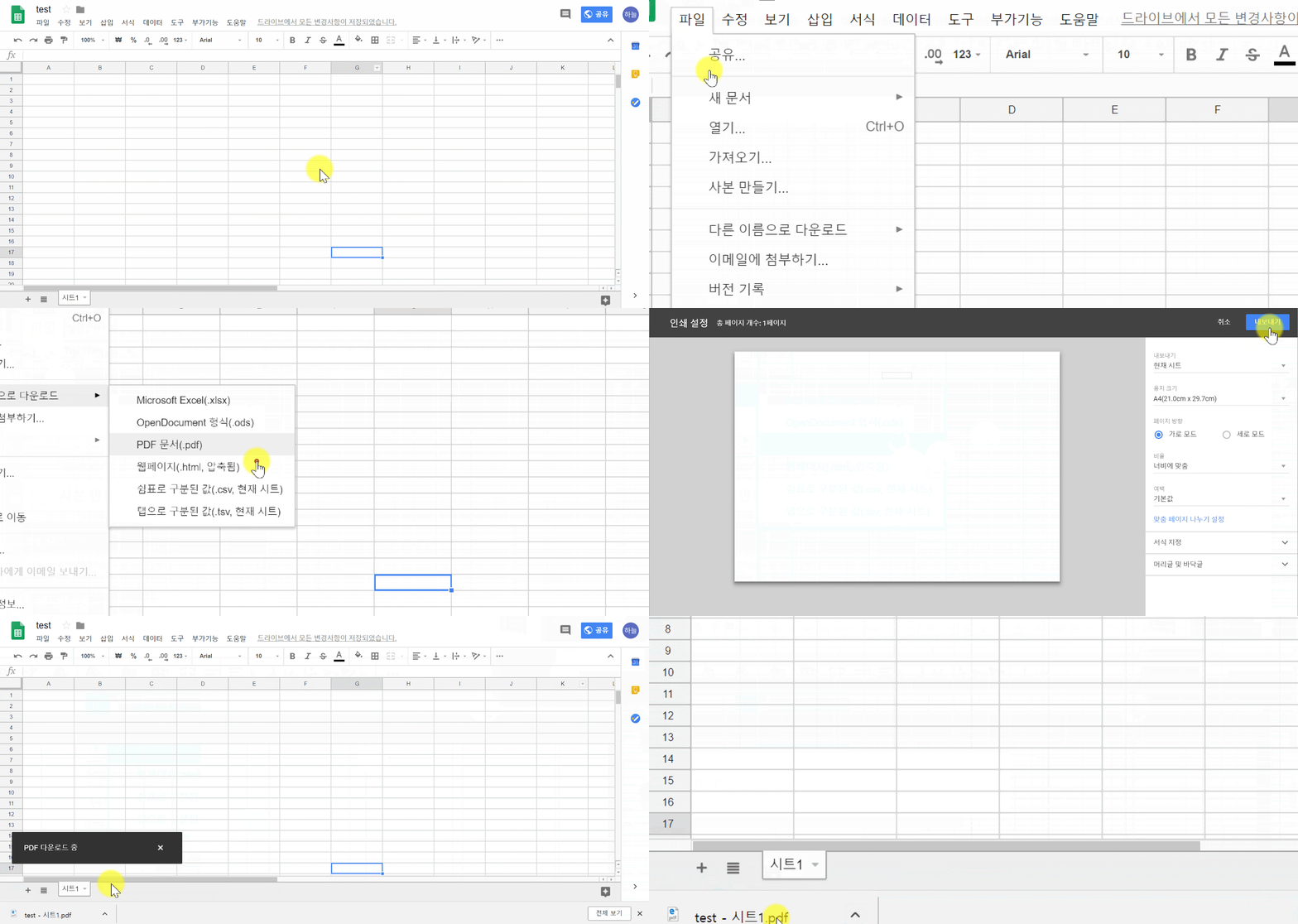
Slides
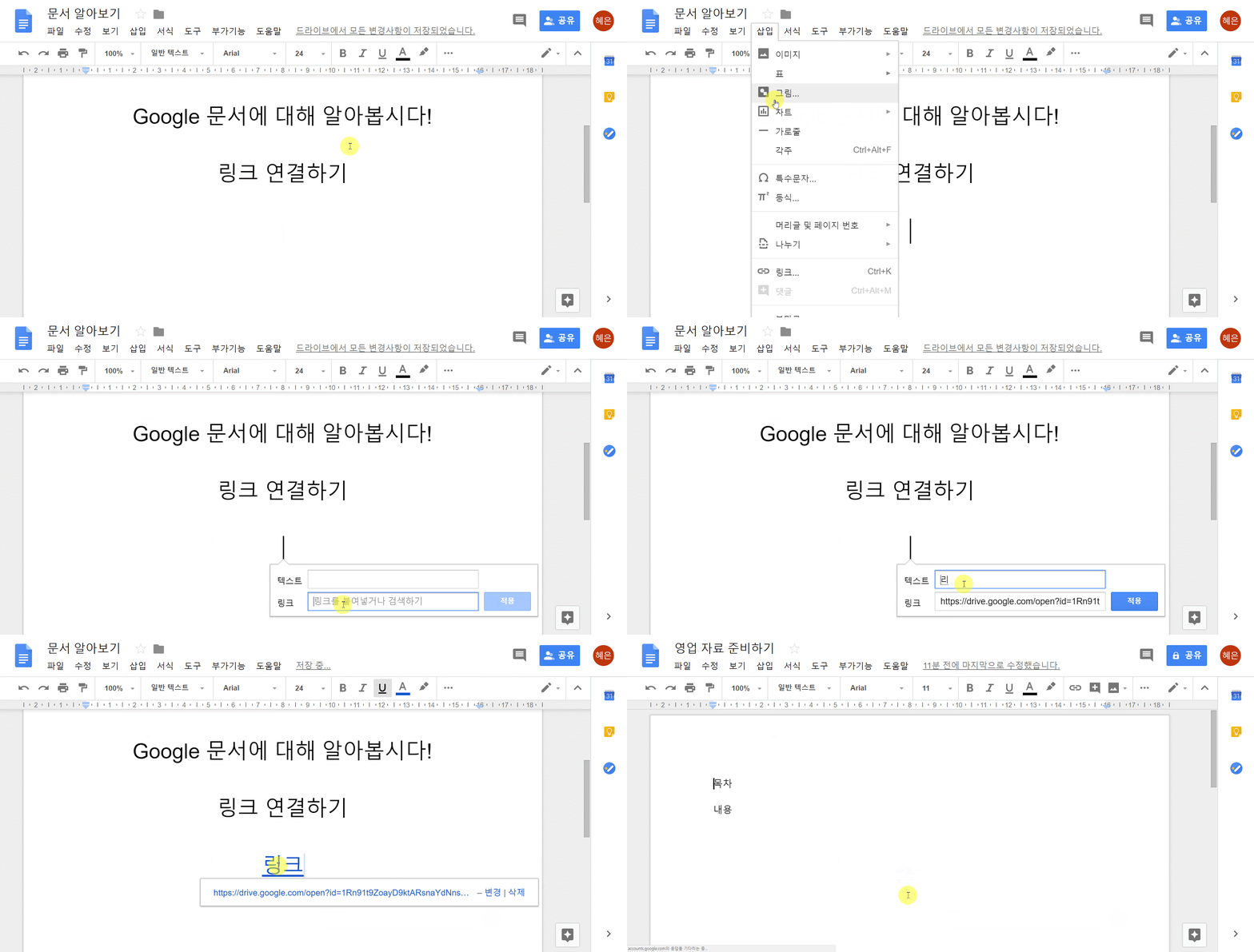
You can add, update, or remove links in Google Docs, Sheets, or Slides.
- Open a doc, sheet, or slide.
- Click where you want the link, or highlight the text that you want to link.
- Click Insert > Link
- Under "Text," enter the text you want to be linked.
- Under "Link," enter a URL or email address, or search for a website.
- Click Apply.
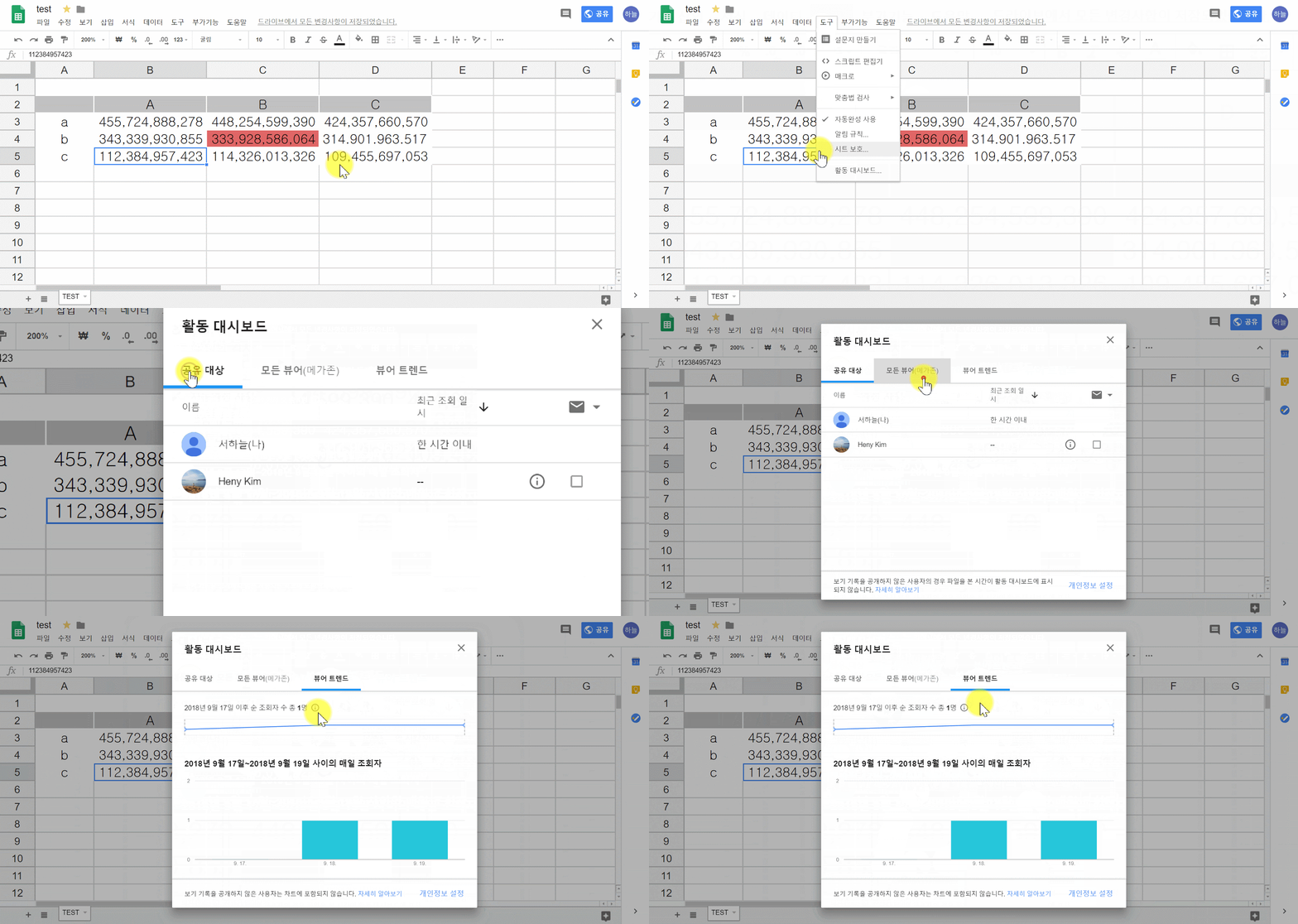
View the activity on your Google Docs, Sheets & Slides
You can see which of your collaborators have viewed and commented on your file in Google Docs, Sheets, and Slides with your account through work.
- On your computer, open a file in Google Docs, Sheets, or Slides that you can edit
- At the top, click Activity dashboard
- On the left, click Viewers.
Note: You can only view activity on files owned by a Google Account that can use Activity dashboard.
Comments
0 comments
Please sign in to leave a comment.