
Google Forms App Start
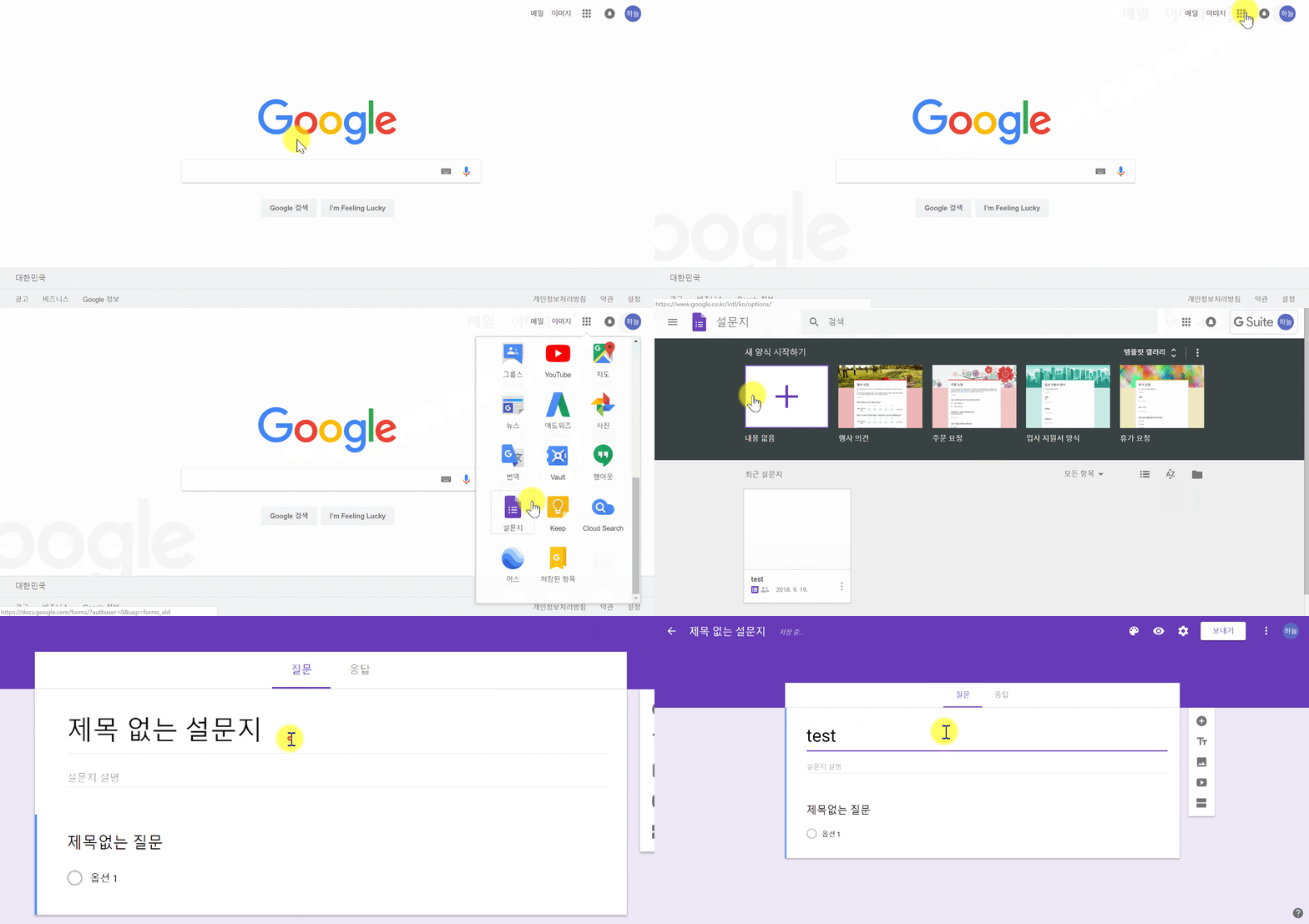
- Google Login
- Browser in the upper-right (Google Apps) Click
→ if ‘Forms’ start, ‘Blank’ click then you see new Forms
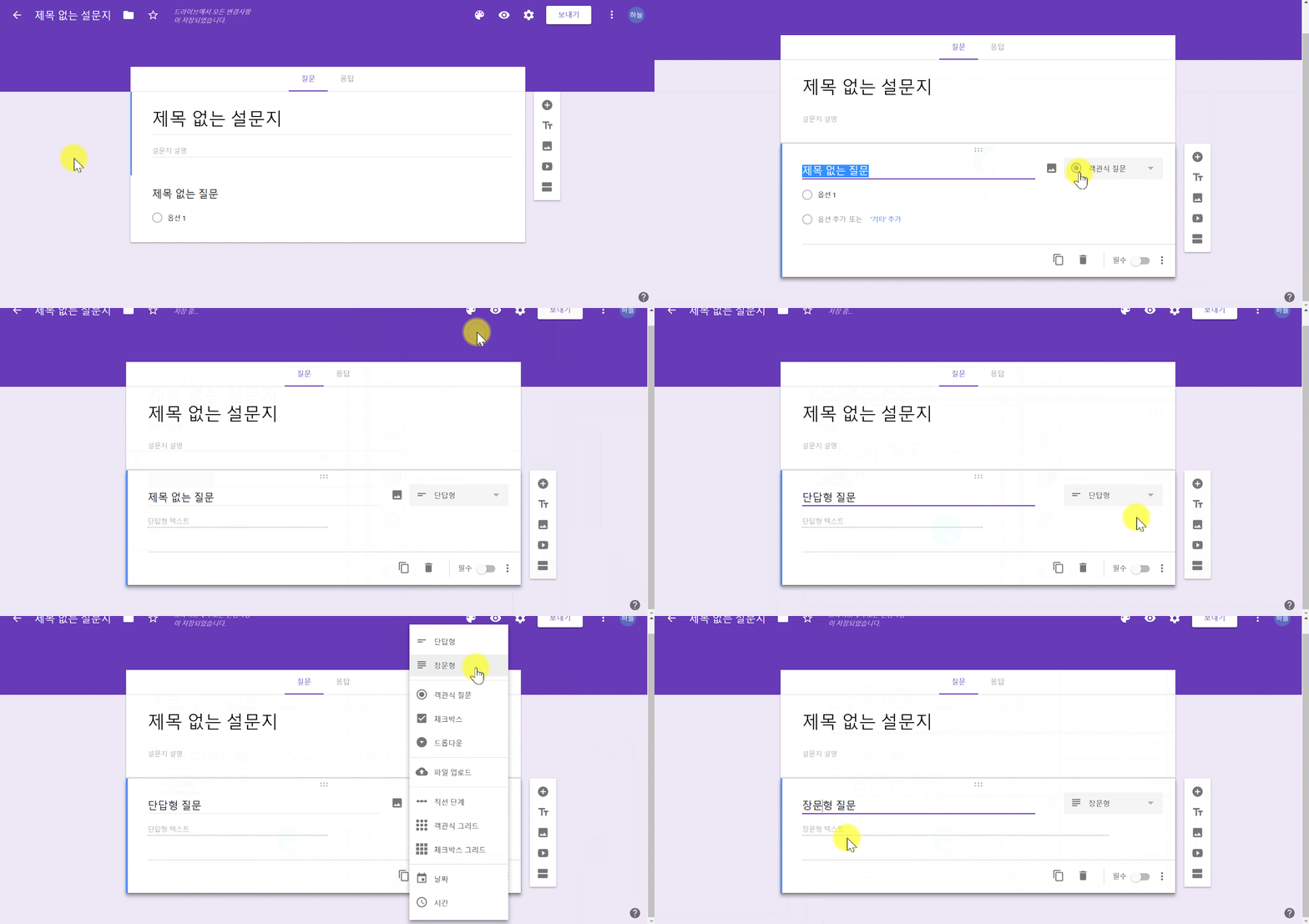
Short answer/ Paragraph Forms
- You can make Forms on Short answer
type and Paragraph type
- Choose the forms
- Open the Question type
→ ‘Short answer’ or ‘Paragraph’ click on right question Type
→ Written the Question
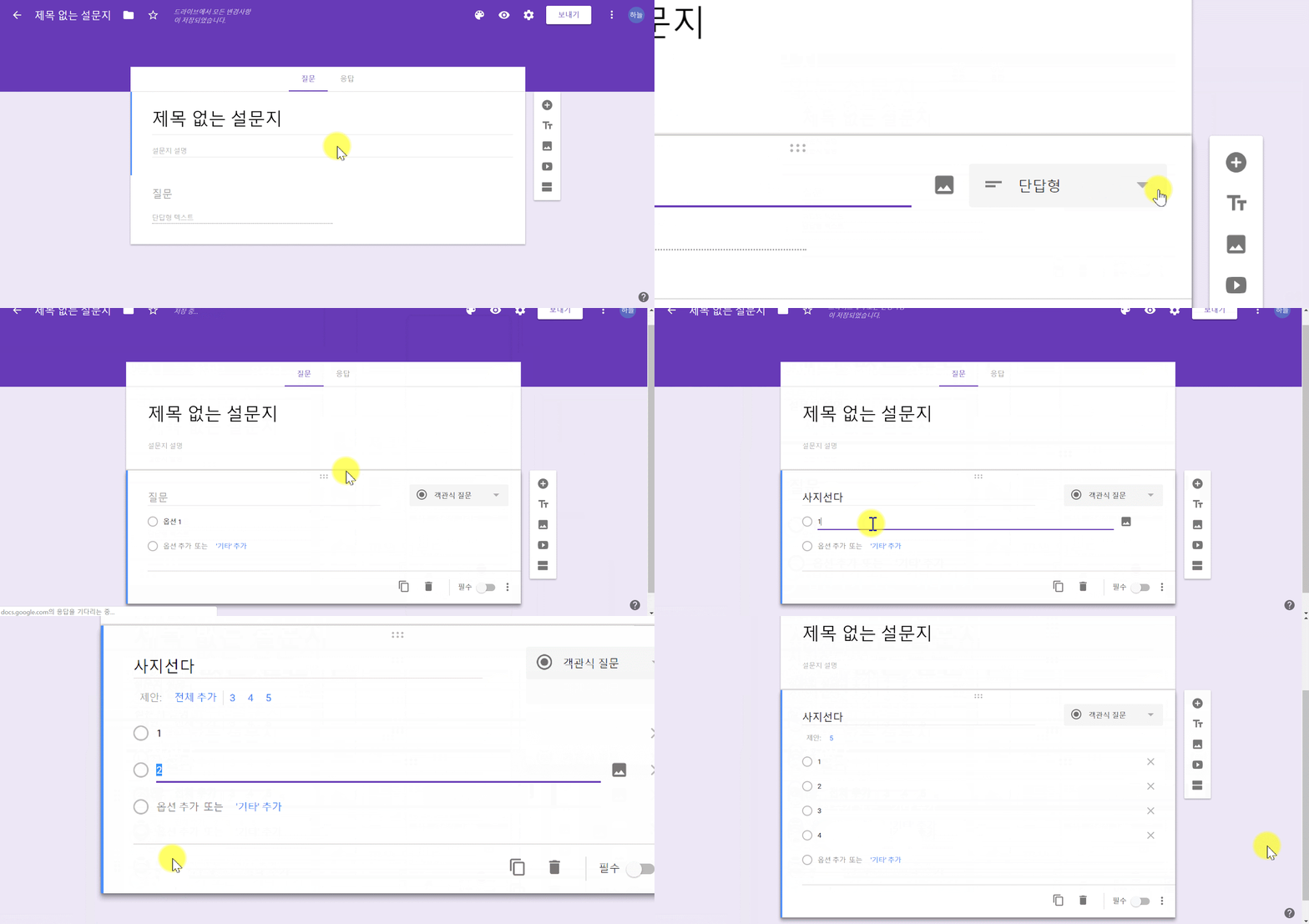
Multiple choice Forms
- You can make Forms that Multiple choice type
- Choose the forms
- Open the Question type
→ ‘Multiple choice’ click on right question Type→ Written the Question
→ Click the ‘Add option’→ Click the ‘add Other’ (Responder only can choice 1 answer)
→ Browser in the upper-right, (Preview icon) you can check applied
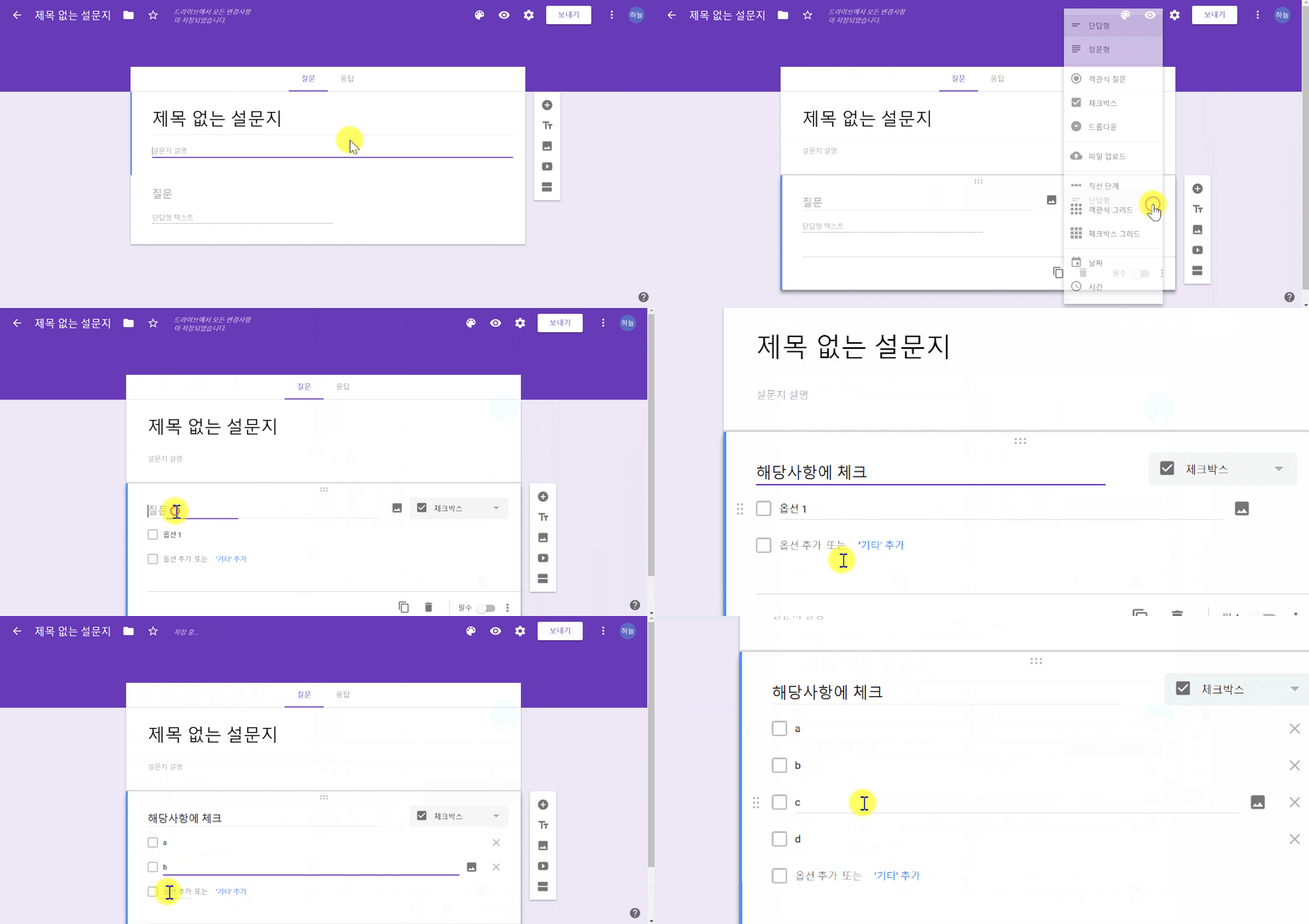
Check boxes Forms
- You can make Forms that Check boxes type
- Choose Forms
- Open the question type
→ ‘Check boxes’ click on right question type→ Written the Question
→ Click the ‘Add option’→ Click the ‘add Other’
→ Browser in the upper-right, (Preview icon) you can check applied
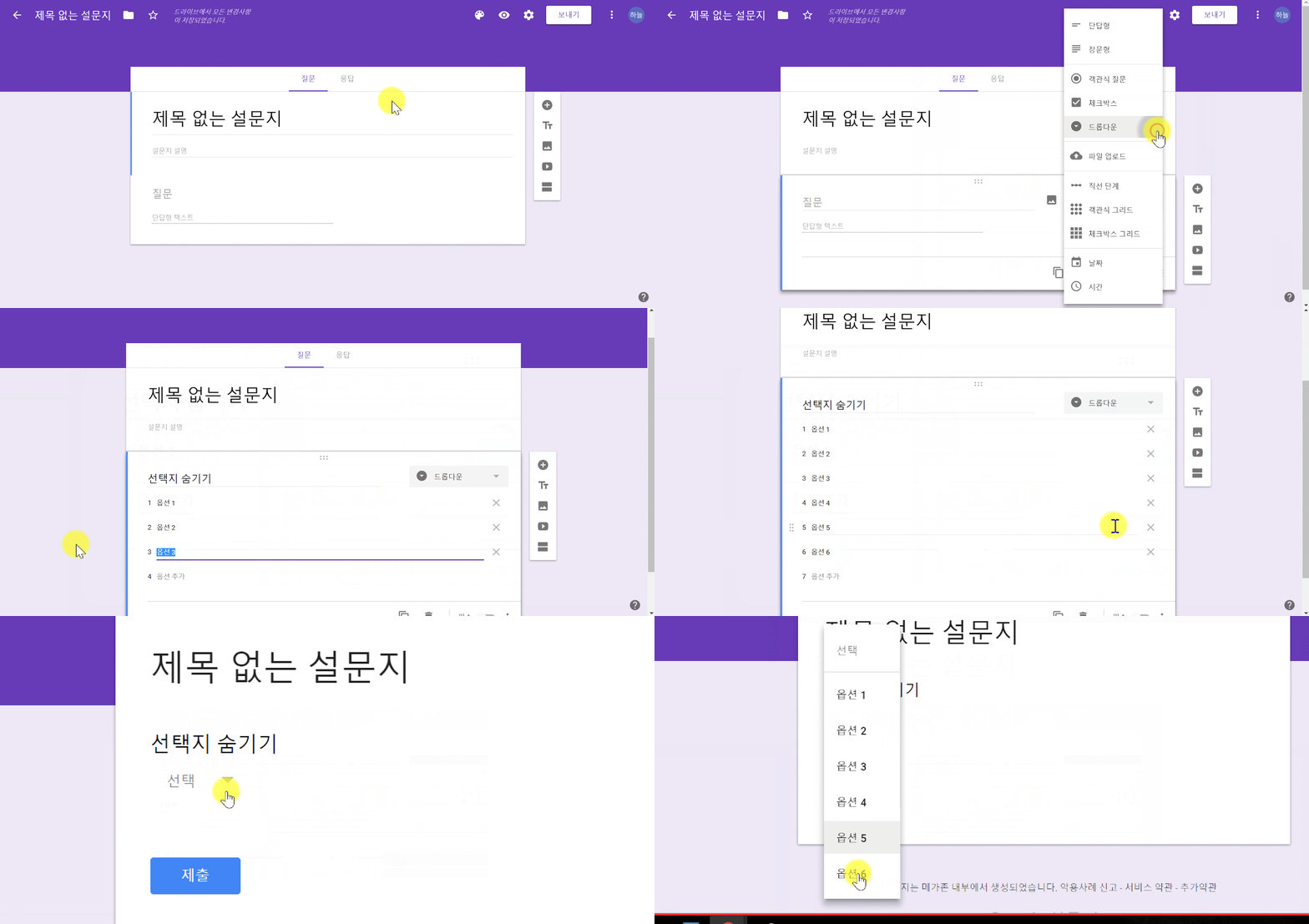
Dropdown Forms
- If a question have multitude of answer, You can hide the options
with a dropdown type.
- Choose Forms
- Open the question type
→ ‘Dropdown’ click on right question type
→ Written the Question
→ Click the ‘Option’
→ Browser in the upper-right, (Preview icon) you can check applied
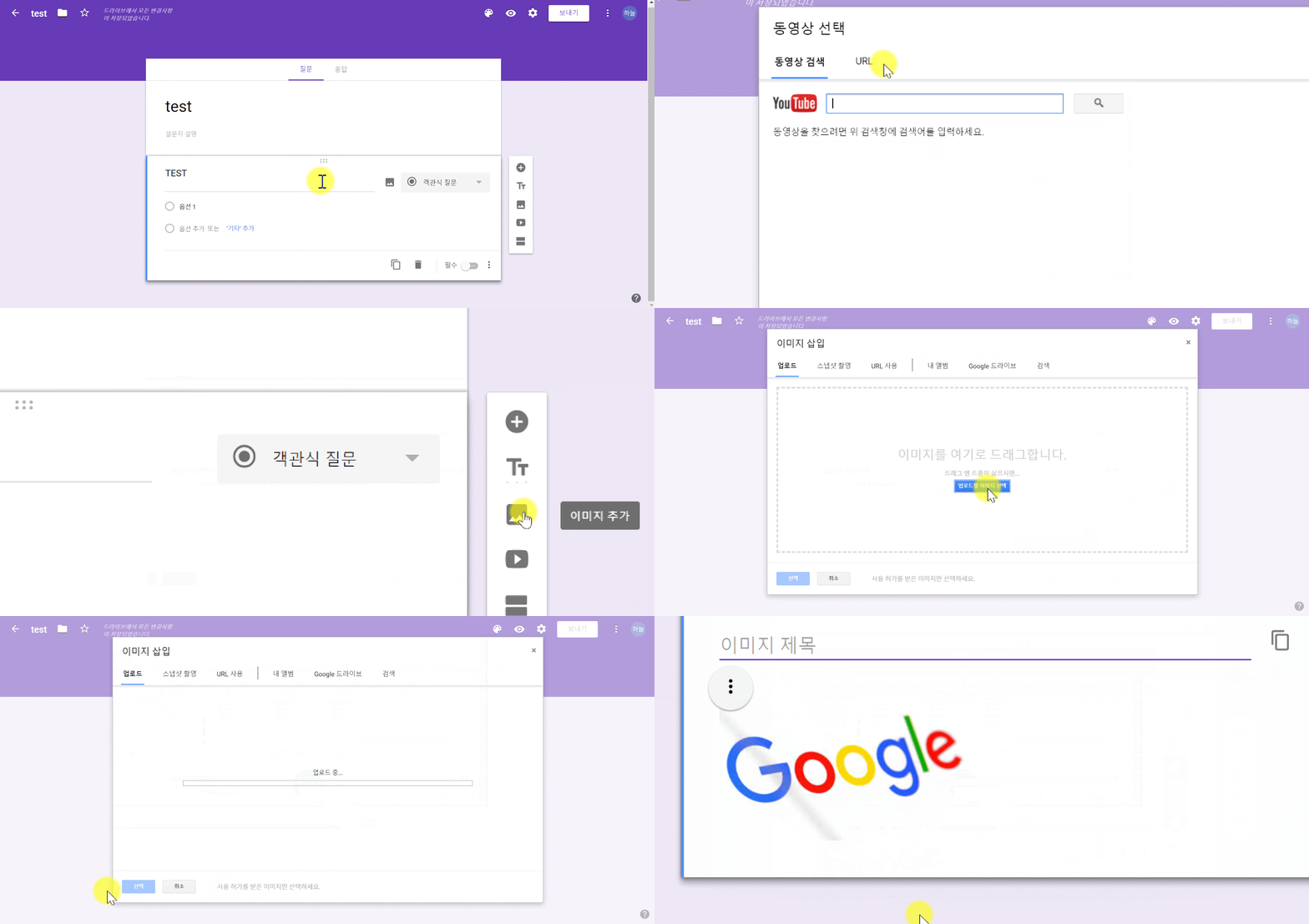
Attach file to Forms
- You can attach image file and video file
- Choose Forms
- Open the question type
→ Click the Image / Video
→ Choice a file / URL link
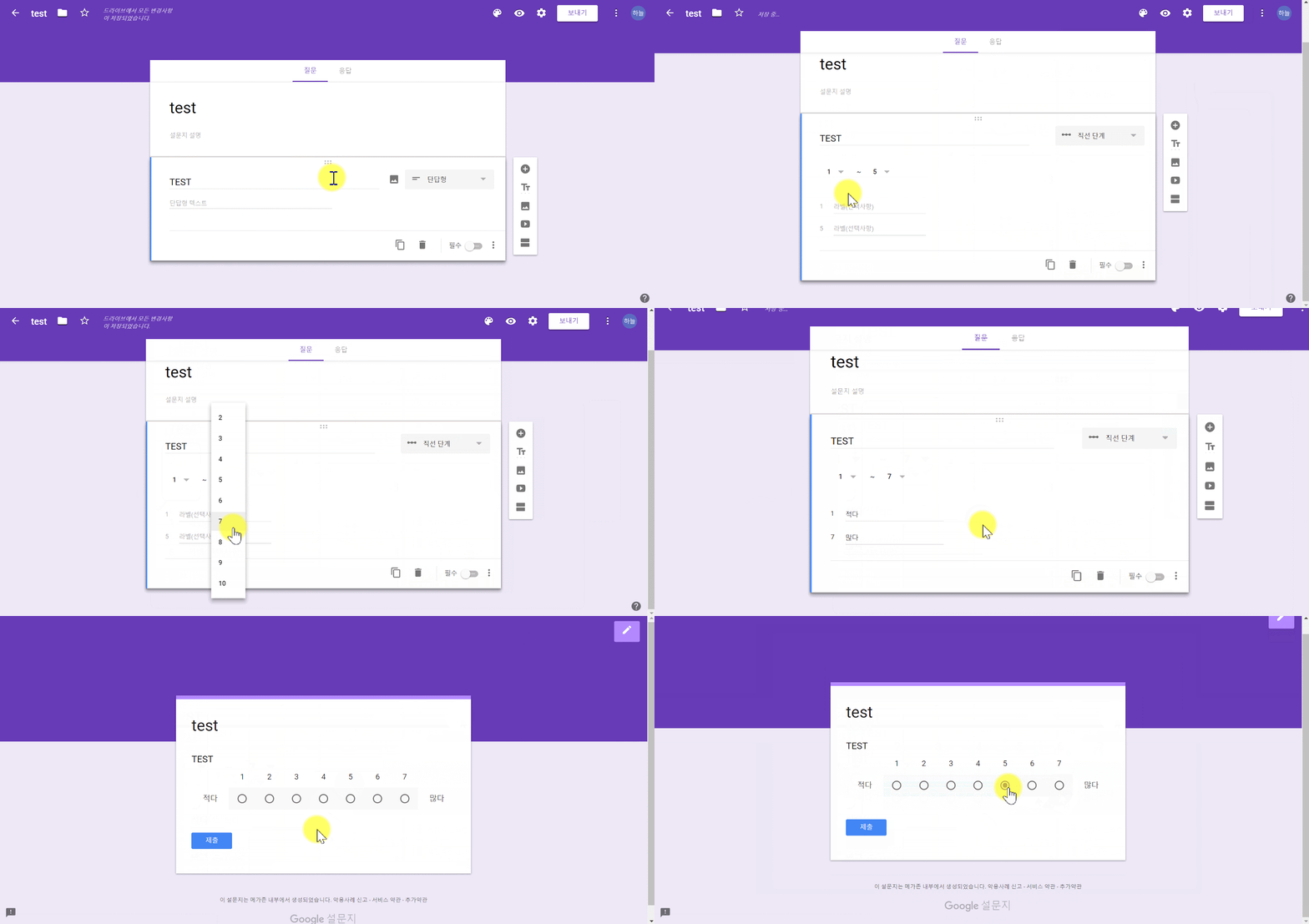
Linear scale Forms
- You can make Forms that including linear figures type
- Choose Forms
- Open the question type
→ ‘Linear scale’ click on right question type
→ Choice the Min, Max
→ Browser in the upper-right, Preview icon you can check applied
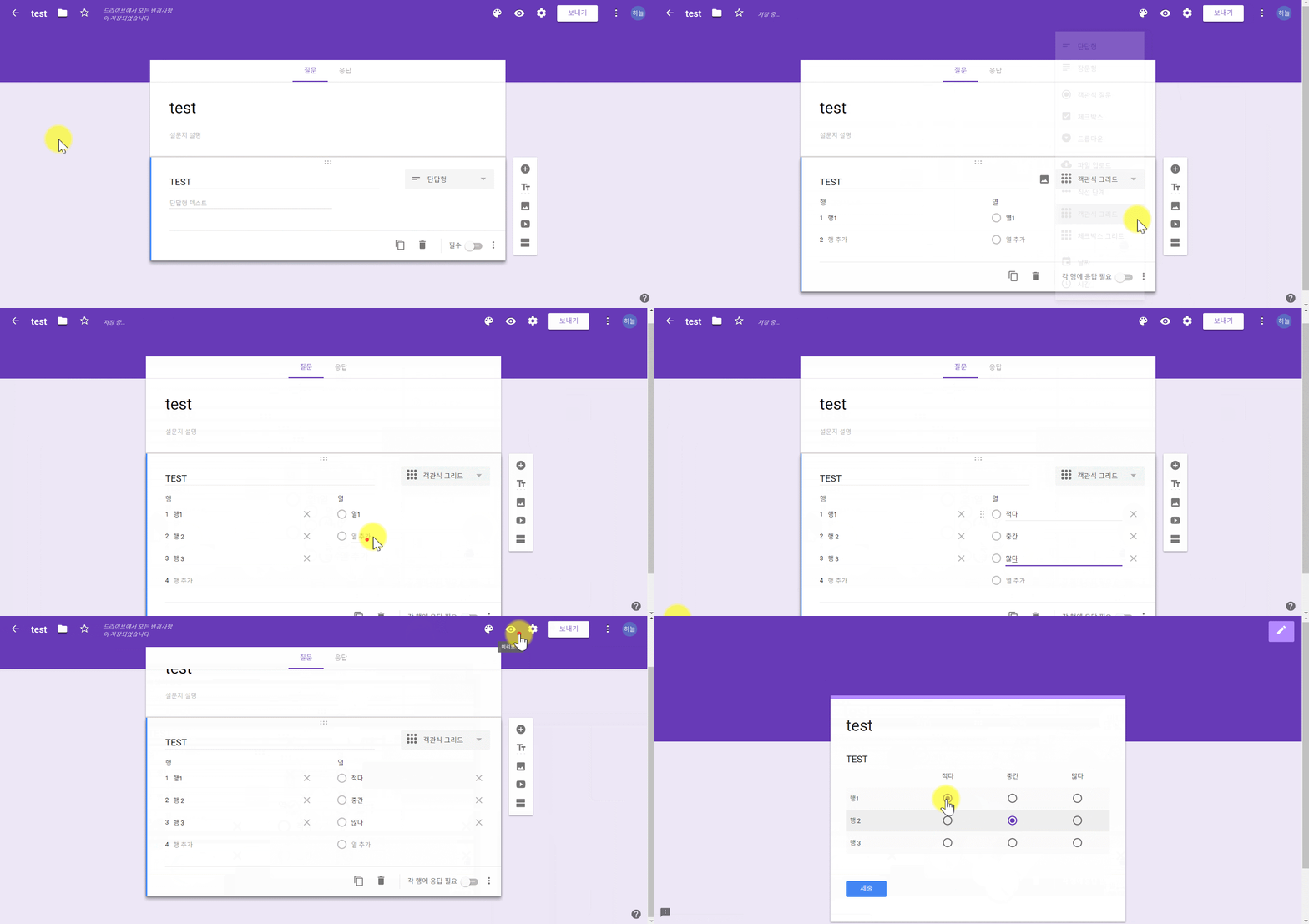
Multiple choice grid
- You can make Forms that Multiple choice grid type
- Choose Forms
- Open the question type
→ ‘Multiple choice grid’ click on right question typr→ Written the Rows / Columns
→ Browser in the upper-right, Preview icon you can check applied
Check-box grid Forms
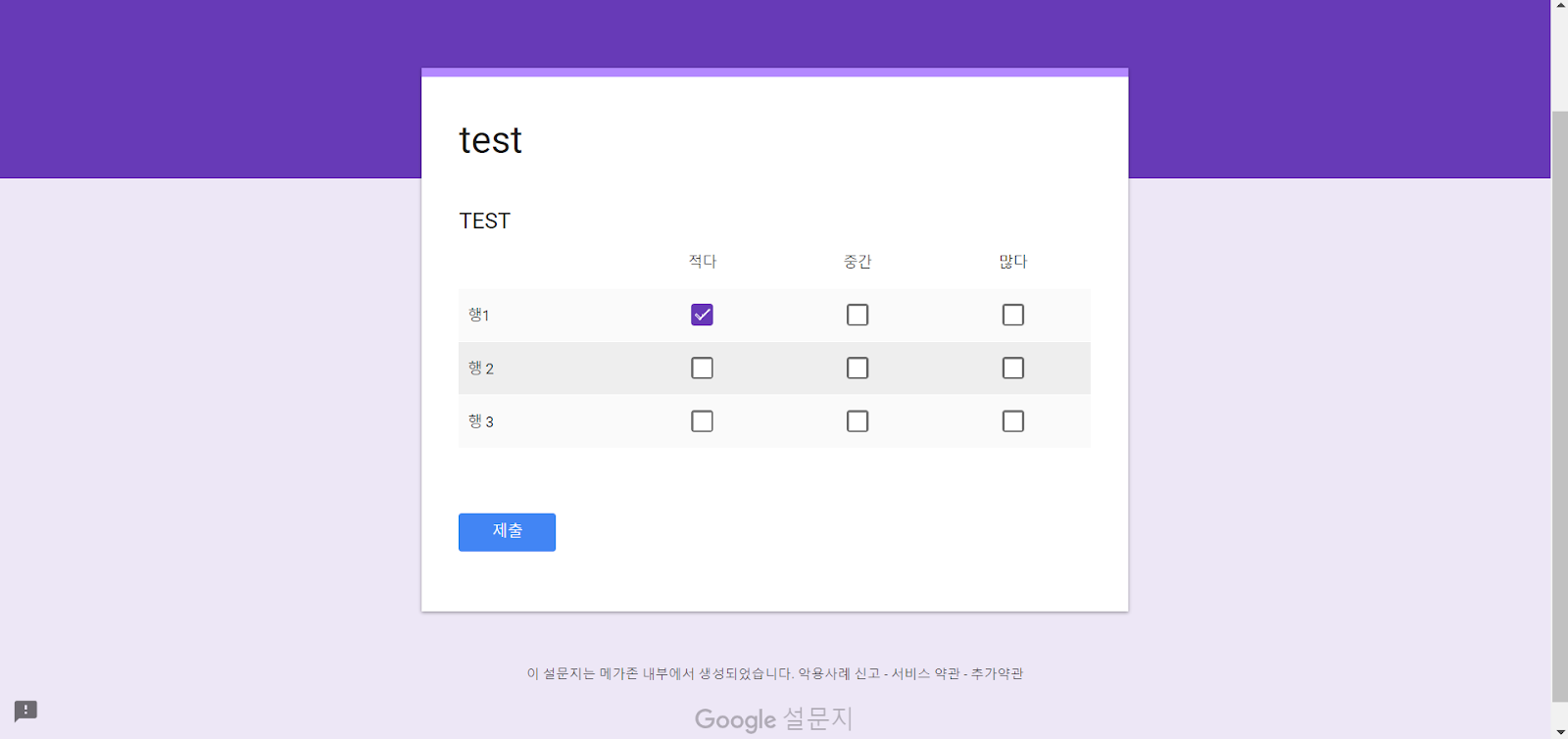
- You can make Forms that Checkbox grid type
- Choose Forms
- Open the question type
→ ‘Check-box grid’ click on right question type→ Written the Rows/ Columns
→ Browser in the upper-right, Preview icon you can check applied
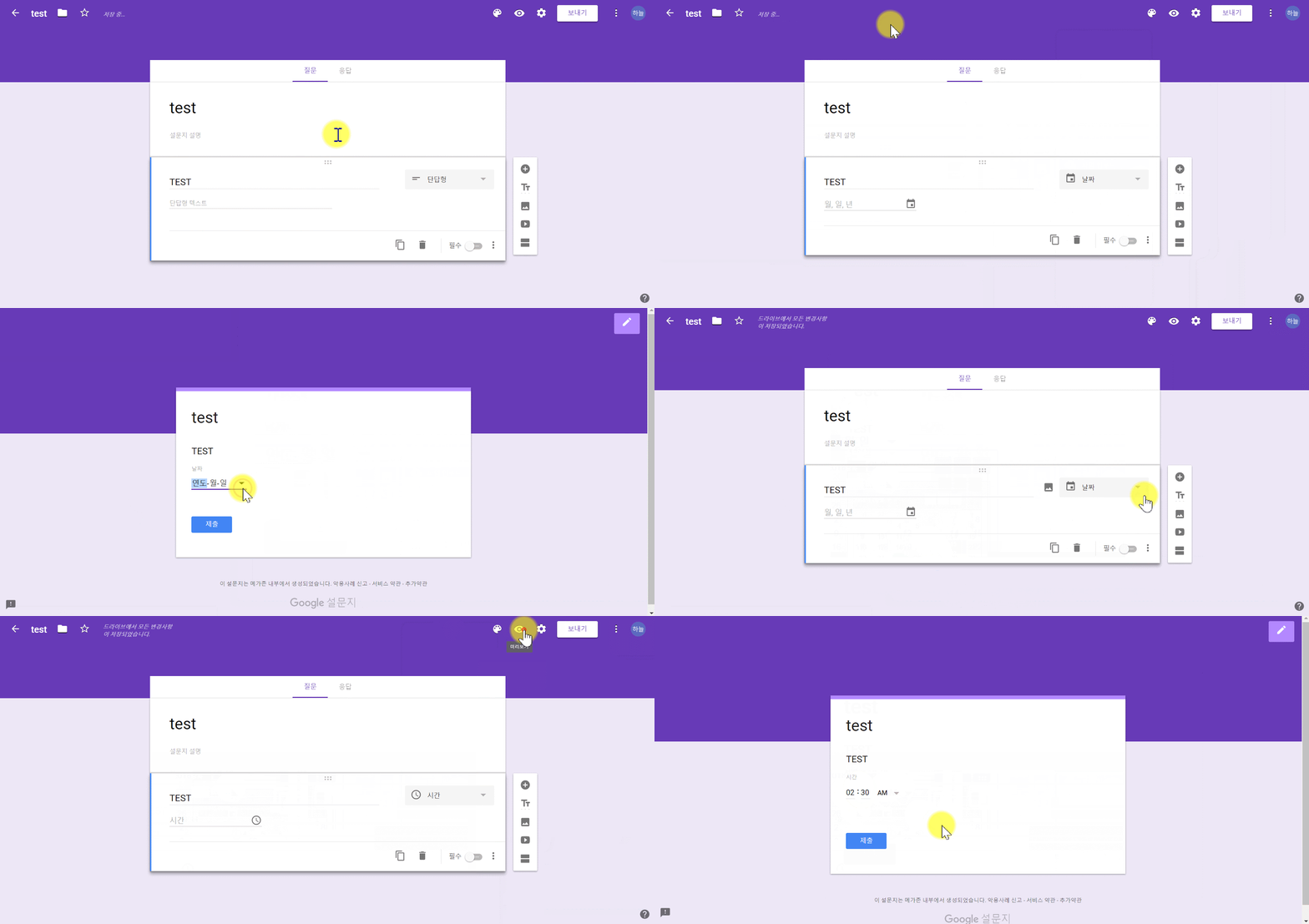
Date / Time Forms
- You can make Forms that the answer specifying Date / Time
- Choose Forms
- Open the question type
→ Choice ‘Date / Time'→ Browser in the upper-right, Preview icon you can check applied
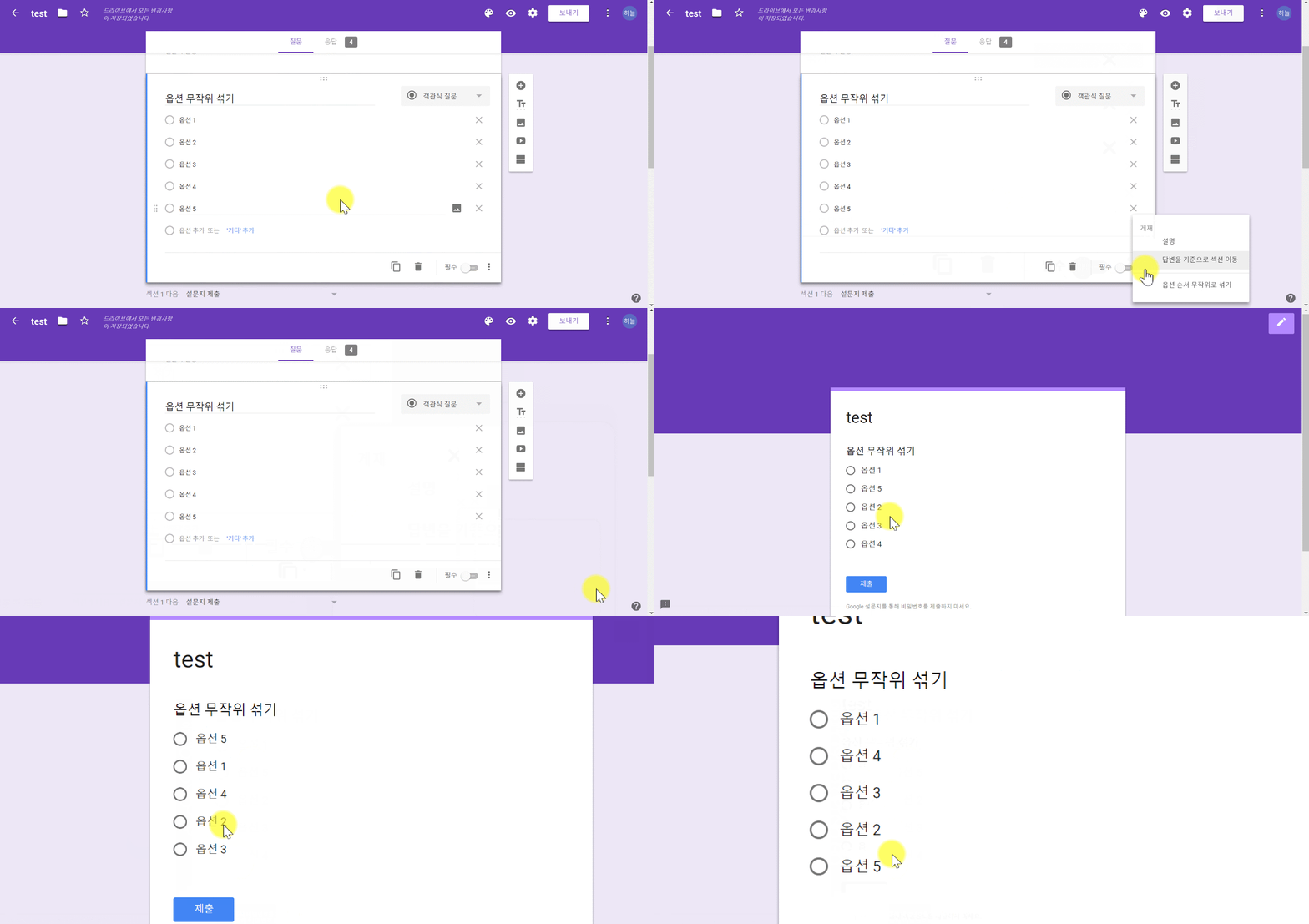
Setting shuffle answer lis
- You can make the list of answers appear shuffle to responder.
- Make done Question and answer, Click Other menu
→ ‘Shuffle option order’ click → Browser in the upper-right, Preview icon you can check applied
Copy link the completed Forms
- You can share the link the write your answer before Forms being
filled out.
- Make done Question and answer, Click Other menu
→ ‘Get pre-filled link’ click→ Fill out answer in preview browser
→ If ‘Get link’ Click, you can copy the completed Forms of link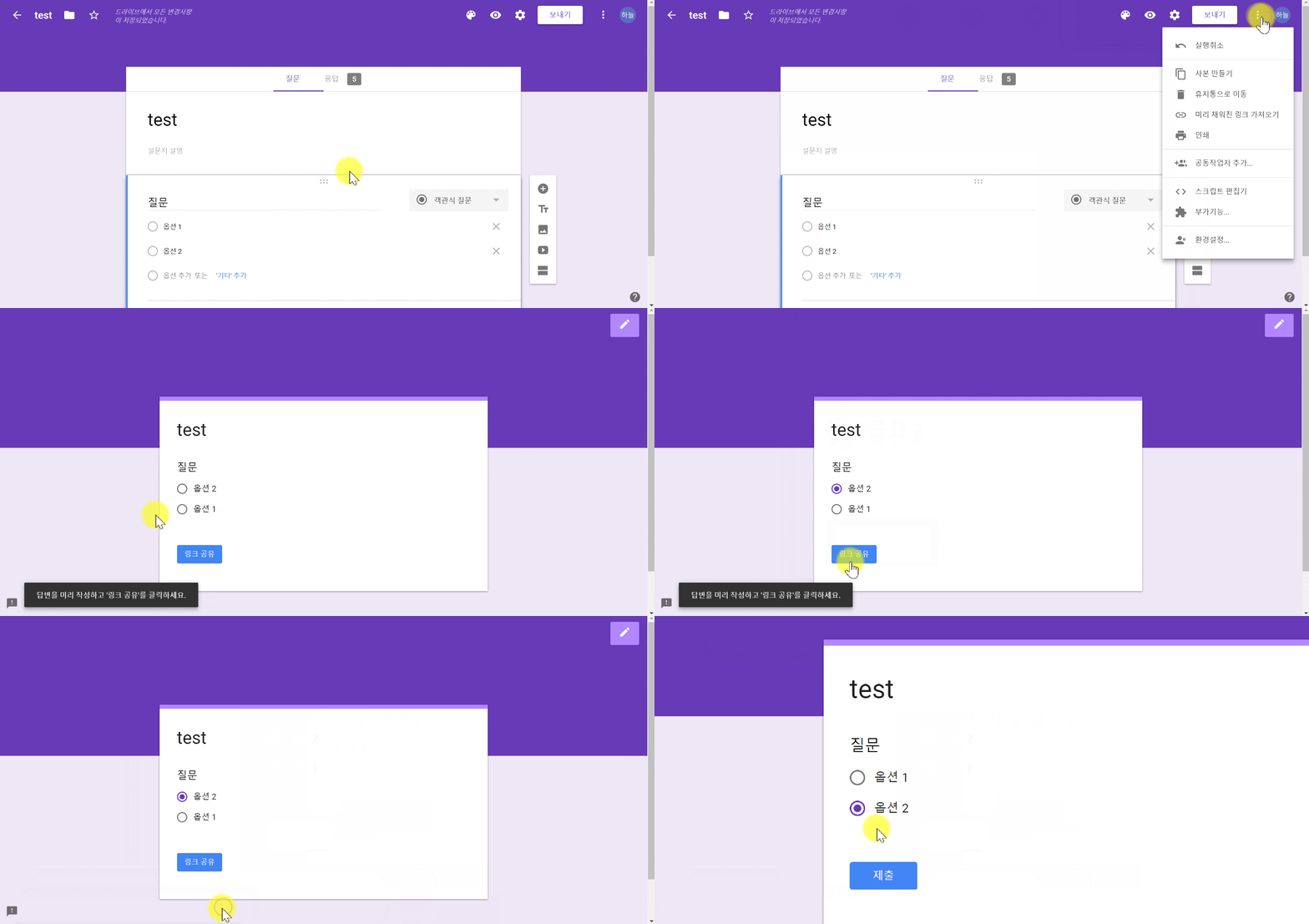
Comments
0 comments
Please sign in to leave a comment.