
Create a new event
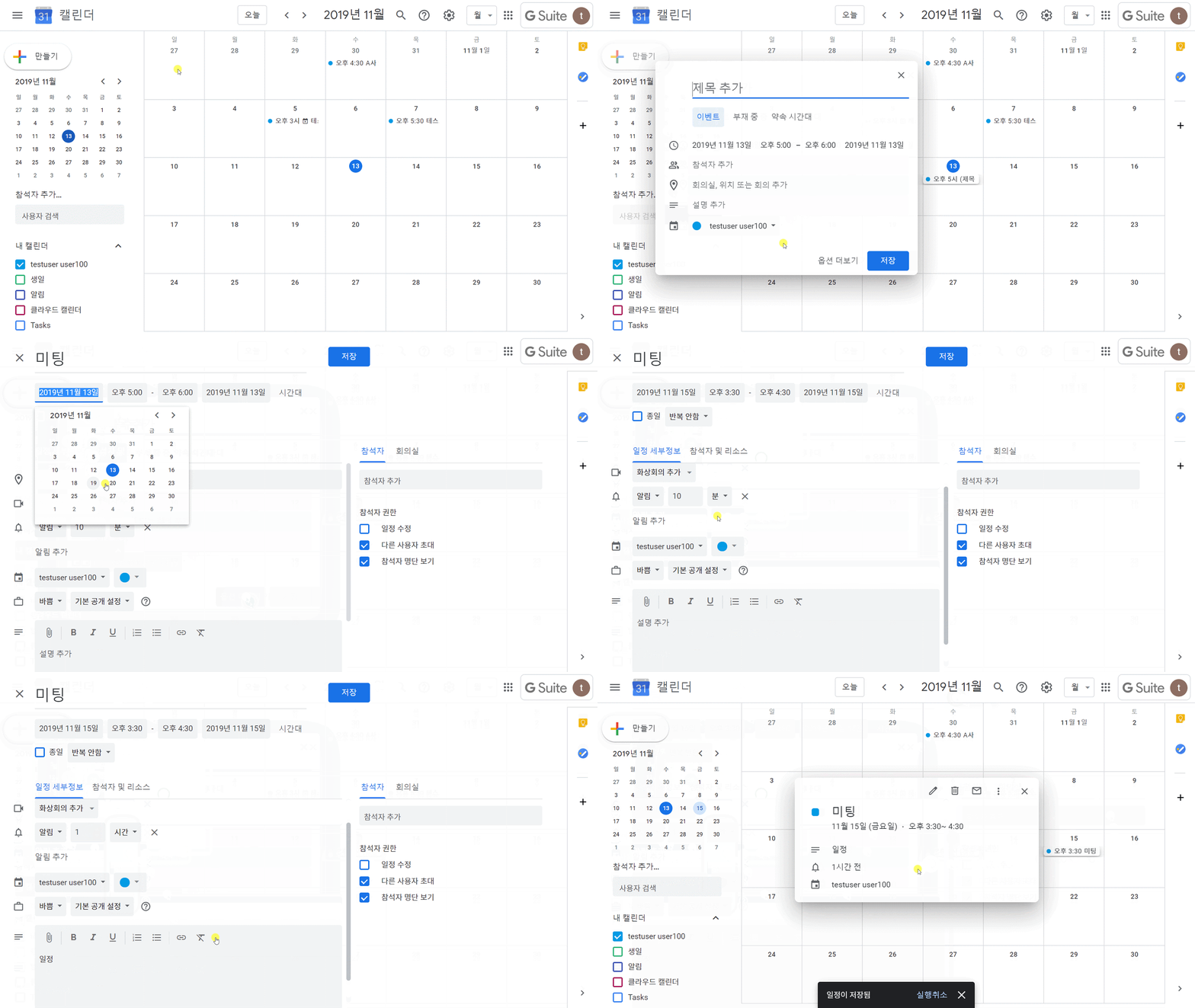
①In the top left corner, click Create .
②Add a title to the event, and any event details.
③Optional: If you want to add guests to your event,
on the left click Search for people and start typing the names of your guests.
Add people to your event

① Click an event > Edit event
② On the right, under "Guests," start typing the name of the person and choose someone from your contacts. You can also type an email address to invite people who aren't in your contacts list.
③ When you're done editing your event, click Save.
When you save your event, an email invitation will be sent to your guests.
You can't add people to events that are automatically created from Gmail.
Add a room to an event

① Create a new event or open an existing one.
② If you are editing an existing event, click Edit event
③ If your account is part of an organization with Rooms, click Rooms.
Based on who you invite, you can choose from suggested rooms or search for a new one.
④ Click the rooms or resources you want to add.
⑤ Click Save.
Comments
0 comments
Please sign in to leave a comment.