
Arrange objects
① On your computer, open a presentation in Google Slides.
② Go to the slide where you want to arrange an object.
③ At the top, click Arrange.
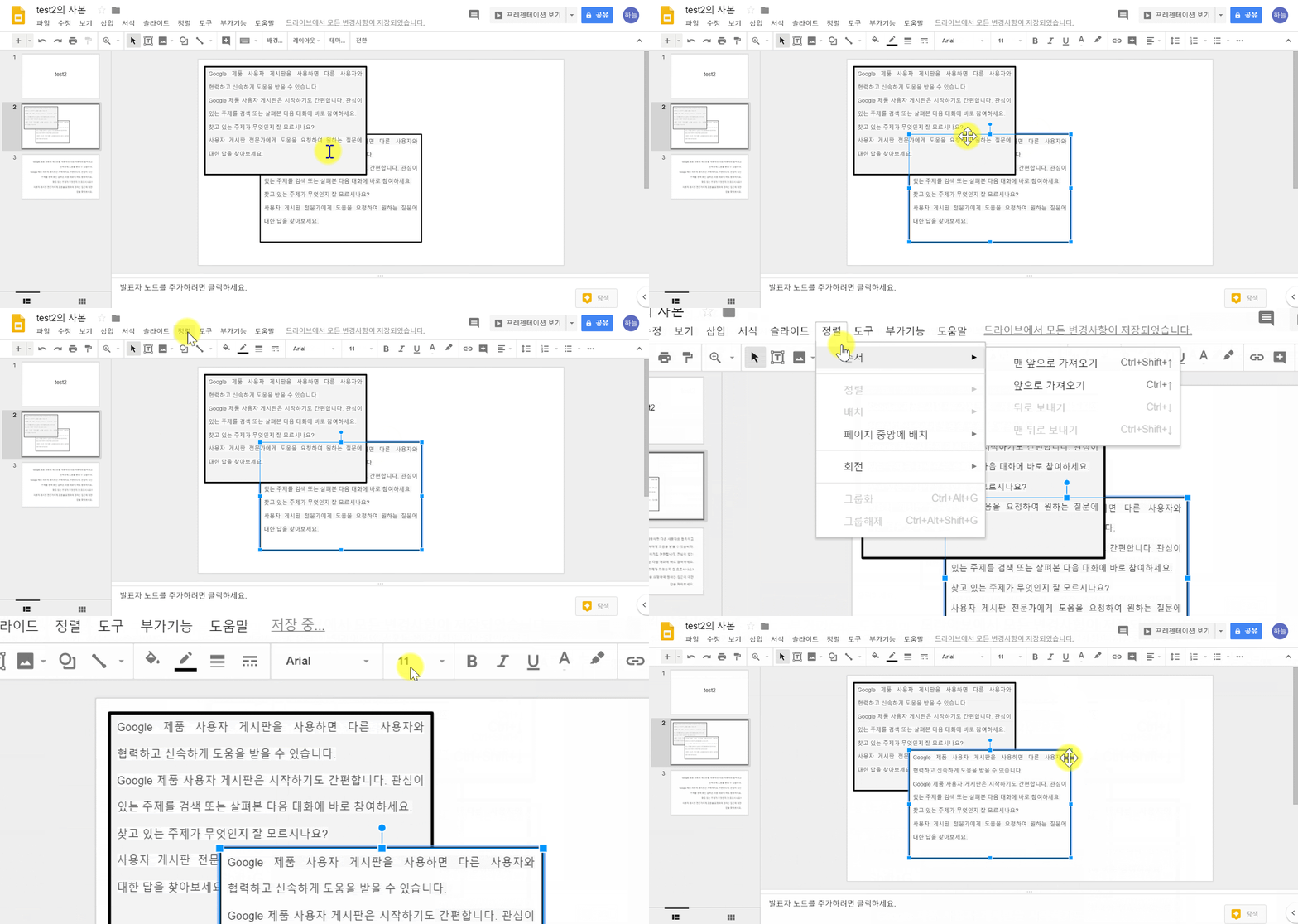
④ Choose from the following options:
-
Order: Put the object behind or in front of text, other objects, or images.
-
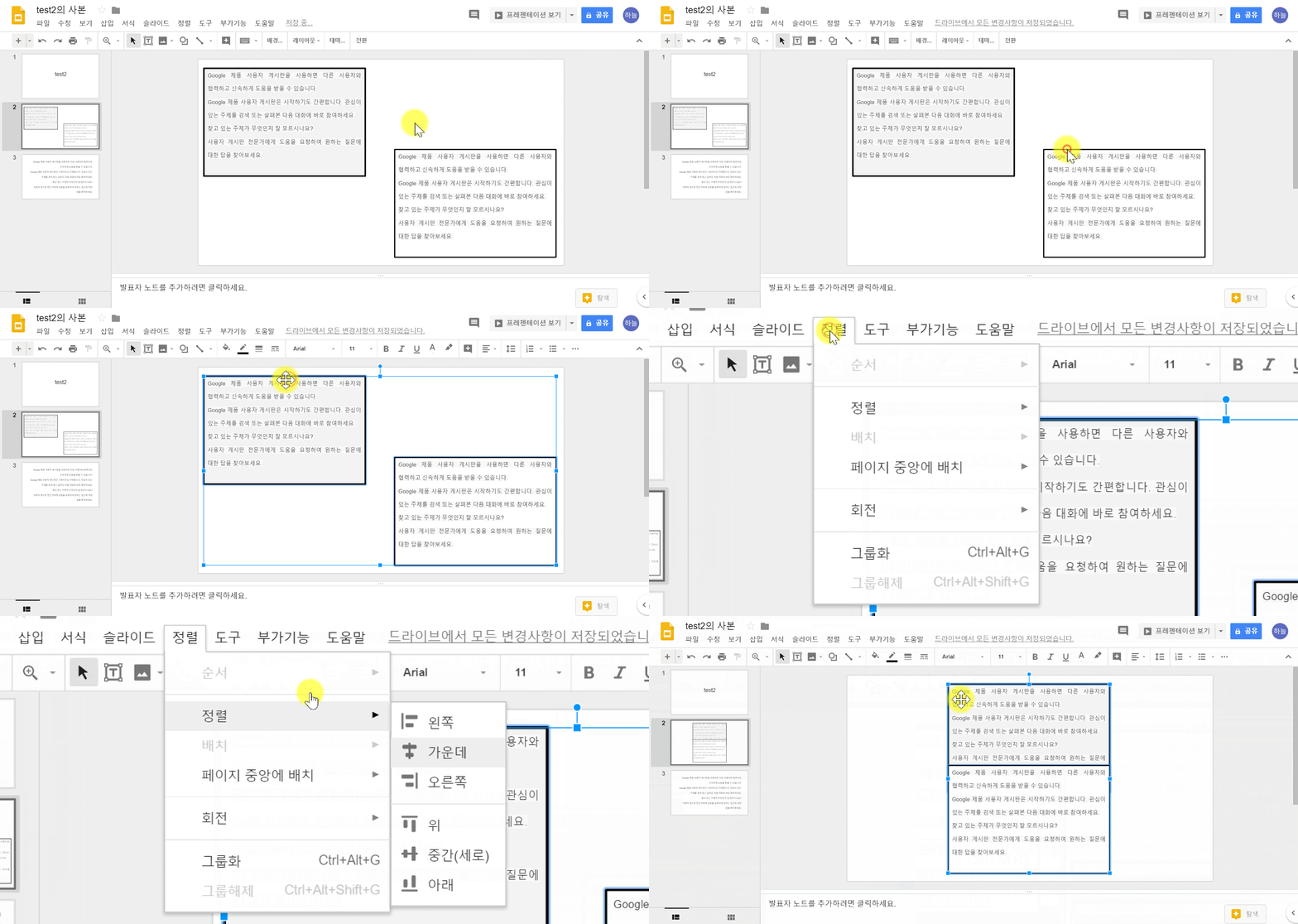
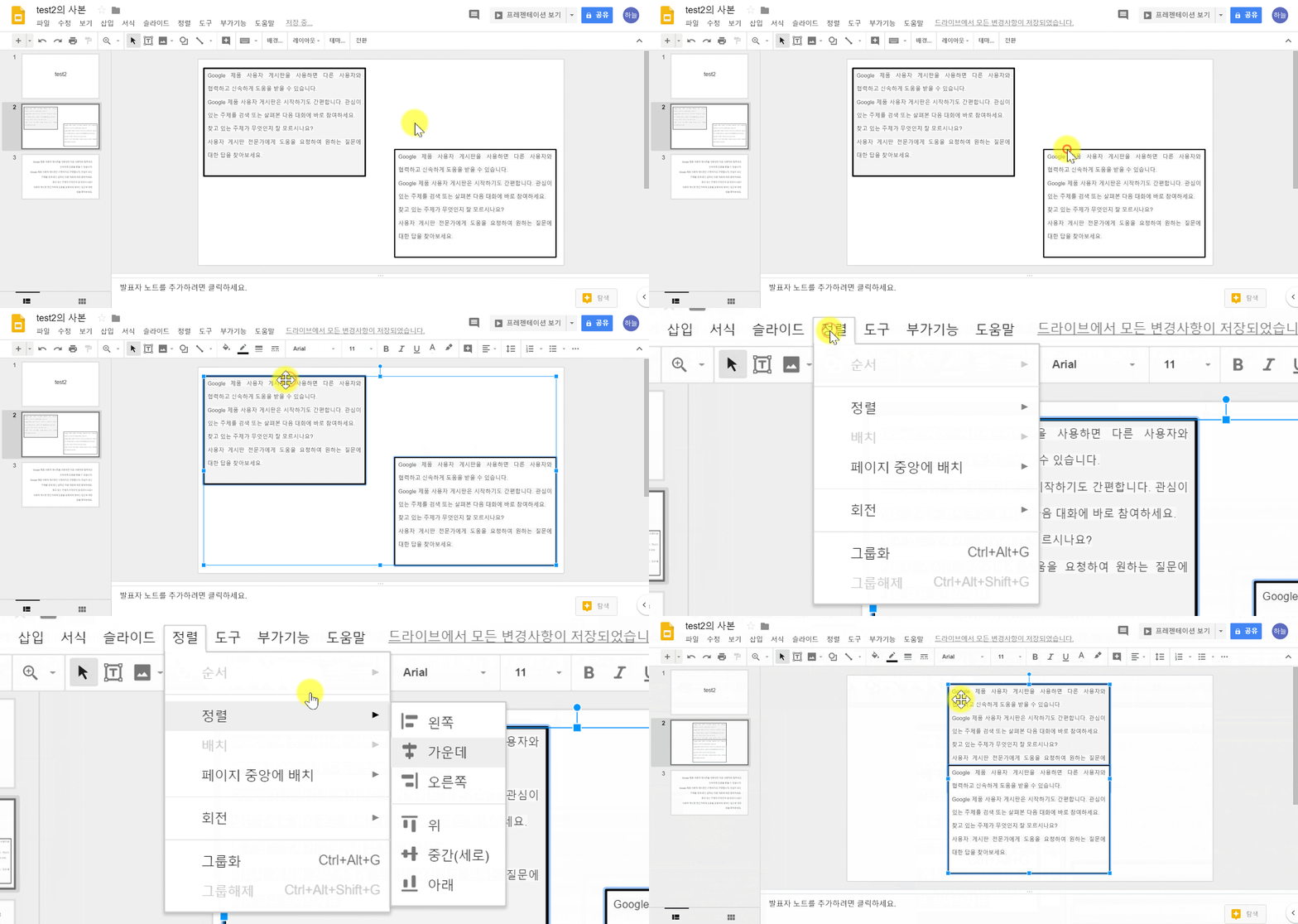
Align: When you select multiple objects, you can align the edges of the objects.
Move or rotate an object
① On your computer, open a presentation in Google Slides.
② Go to the slide with the object or text box you want to change.
③ Click the object or text box.
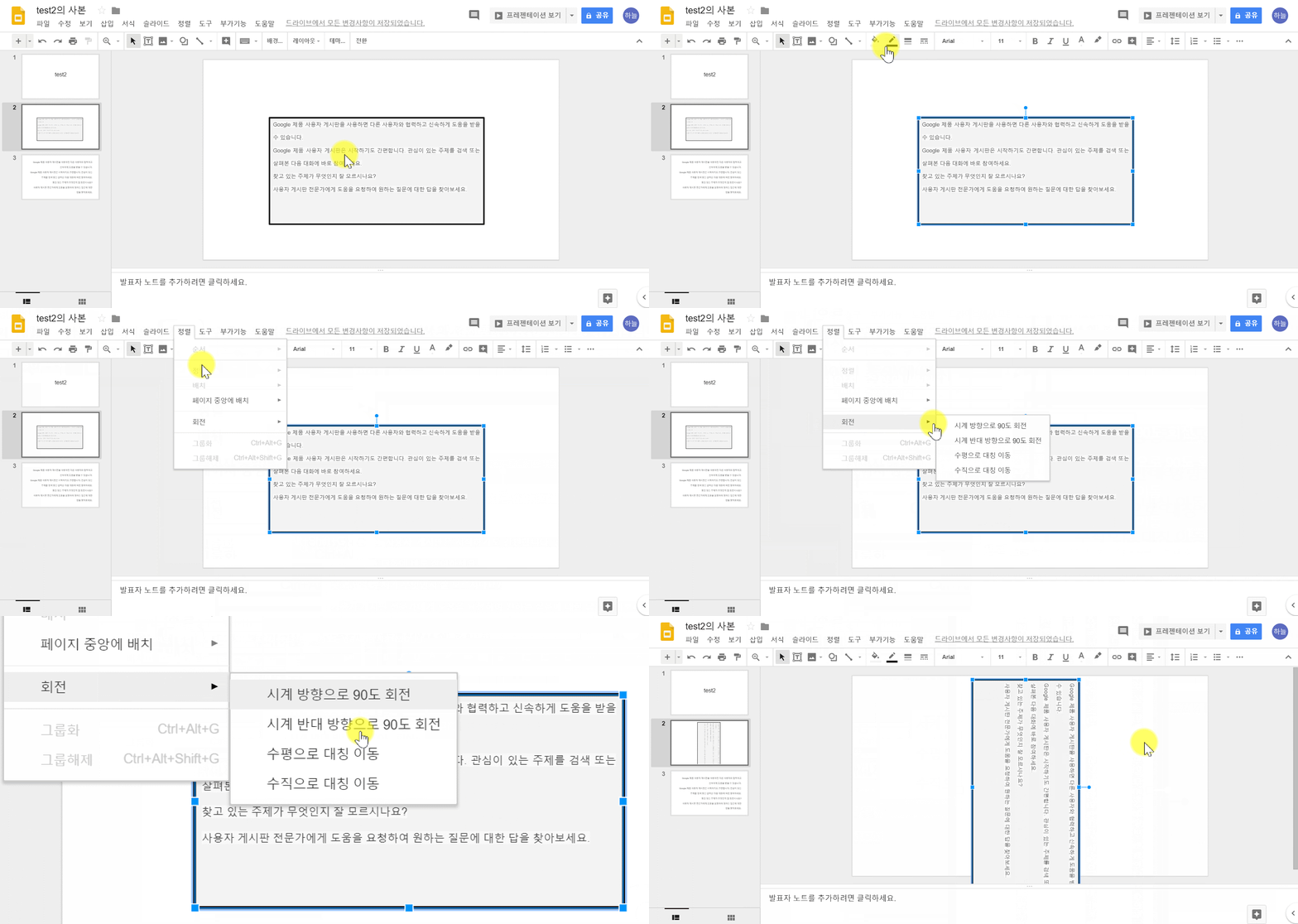
④ In the menu at the top, click Format > Format options.
⑤ At the right, click Size & Position.
⑥ Make changes to the object or text box.
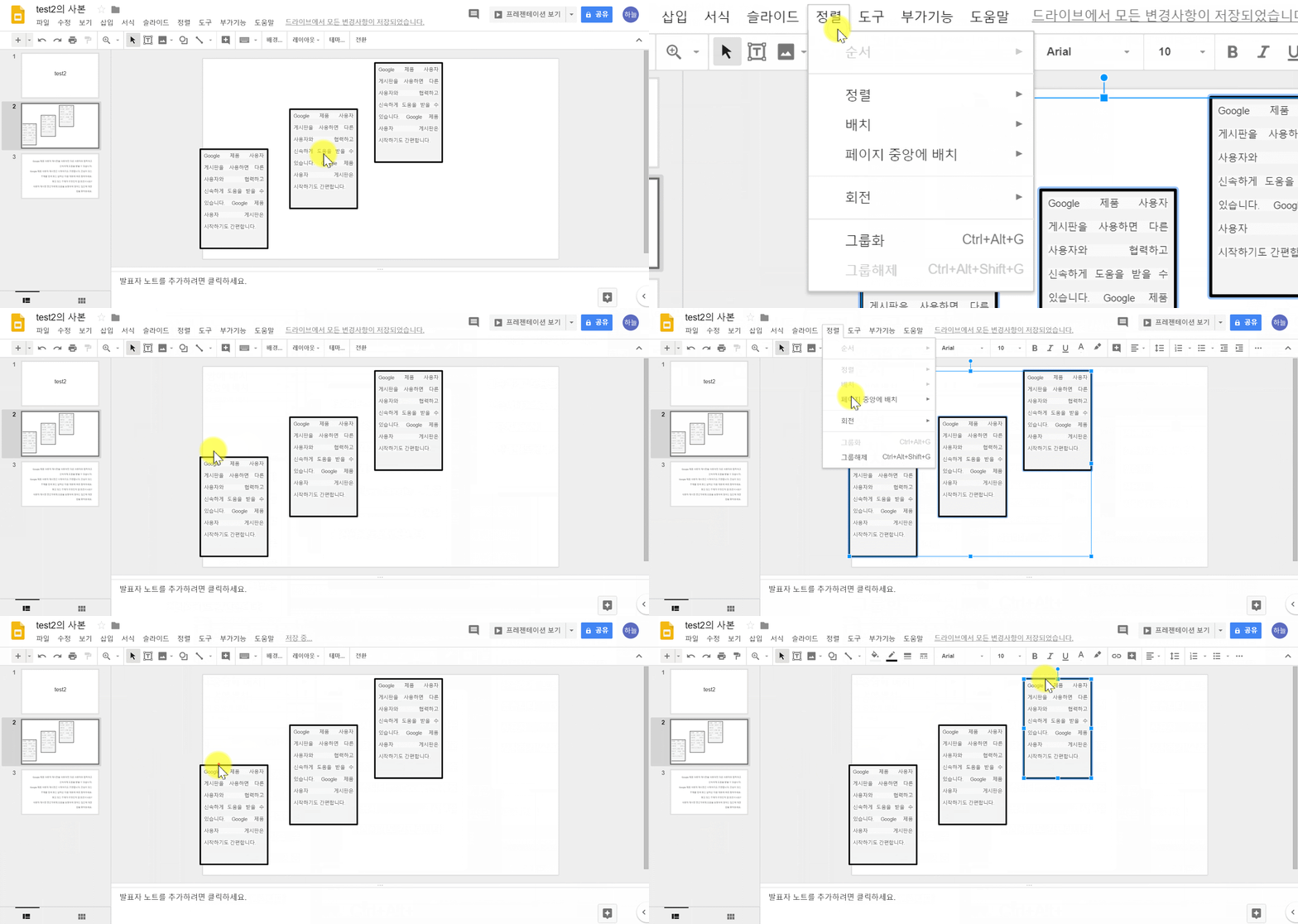
Group objects together
① On your computer, open a presentation in Google Slides.
② Select the other objects you want to group together.
③ In the menu at the top, click Format > click group
Comments
0 comments
Please sign in to leave a comment.